


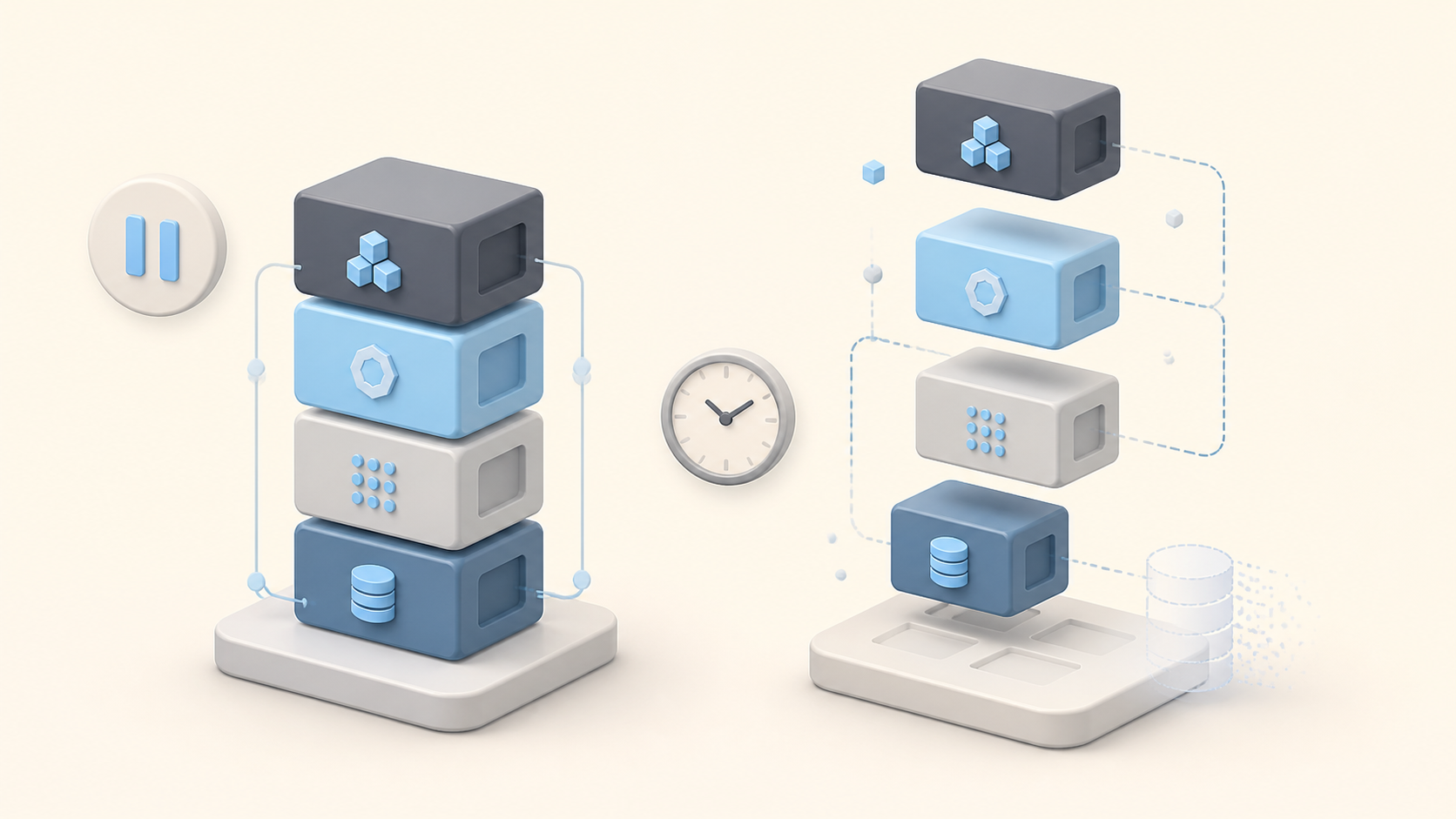
docker commit creates a new local image from a container’s writable filesystem changes and image configuration. It does not copy data stored in mounted volumes. Docker pauses the container during the commit by default to reduce the chance of an inconsistent snapshot. Use it for debugging, recovery, teaching, or short experiments. Use a Dockerfile for images that must be reviewed, rebuilt, patched, and maintained.
Short recommendation: use
docker committo preserve one useful container state quickly. Treat the result as evidence or a temporary handoff, not as a replacement for a version-controlled build recipe.
The syntax is docker container commit [OPTIONS] CONTAINER [REPOSITORY[:TAG]]. The shorter docker commit alias behaves the same way. A minimal example is:
docker commit -m "Capture incident debug tools" web-debug acme/web-debug:incident-1842Code language: Bash (bash)What docker commit captures and what it leaves out
A commit is a snapshot of the container’s writable layer, not a full backup of everything attached to the container. Separate filesystem changes, image configuration, and runtime resources before deciding whether the result is usable.
Captured in the new image
Docker records added, changed, and deleted files in the container’s writable layer. The new image inherits image configuration from its parent, and --change can modify a limited set of configuration instructions. Docker also creates a new image layer and records commit metadata such as the message and author when you provide them.
This layer model is explained in more detail in Understanding Docker Image Layers. A committed image is still an image made of layers, but the commit command does not document the shell commands that produced the final filesystem state.
Not captured
Docker’s command reference states that a commit does not include data in mounted volumes. That applies to named volumes and bind mounts. Back up persistent data separately, preferably with an application-aware method when consistency matters. The Docker Compose volumes guide covers the storage boundary in more detail.
Runtime-only objects are also outside the image. A commit does not preserve the container name, published host ports, network attachment, restart policy, resource limits, Compose deployment settings, or secrets supplied by the runtime. Recreate those settings when you start a new container.
| Item | Captured? | Practical consequence |
|---|---|---|
| Writable-layer file changes | Yes | Installed packages and edited files may appear in the image |
| Named-volume or bind-mount data | No | Back up or migrate that data separately |
| Existing image configuration | Inherited | Inspect the result instead of assuming every field |
Supported --change instructions | Yes | Verify the resulting .Config values |
| Published ports and network attachment | No | Recreate them with docker run or Compose |
| Restart policy and resource limits | No | Define them outside the image |
| Interactive command history as a build recipe | No | Translate lasting changes into a Dockerfile |
A safe docker commit workflow
The following workflow captures a disposable Ubuntu container named debug-box. It checks the source, reviews changes, protects mounted data, creates the image, and tests the result before anyone shares it.
1. Identify the exact source container
Record the container ID, source image, status, and mounts. This avoids committing a similarly named container or assuming mounted files belong to the writable layer.
docker ps -a --filter name=debug-box
docker inspect --format '{{.Id}} {{.Config.Image}} {{json .Mounts}}' debug-boxCode language: Bash (bash)
If you need to reproduce how the container was started, save the relevant docker inspect output separately. The image will not recreate runtime wiring for you.
2. Review the filesystem changes
Use docker diff to list files and directories that were added, changed, or deleted in the writable layer:
docker diff debug-boxCode language: Bash (bash)Docker prefixes entries with A, C, or D. Review the list for package caches, temporary files, logs, shell history, credentials, generated keys, downloaded archives, and application data that should not enter an image. docker diff is an inventory aid, not a secret scanner.
3. Handle mounted data and application consistency
Inspect .Mounts and back up required volume data separately. Do not copy a live database directory and call it a safe backup. Use the database or application’s supported backup and quiescing procedure.
Keep Docker’s default pause behavior unless you have a measured reason not to. The pause reduces filesystem races during image creation, but it does not guarantee a transactionally consistent application snapshot. Mounted data remains excluded whether the container is paused or not.
4. Commit to an explicit repository and tag
Use a specific tag and a message that explains why the snapshot exists:
docker commit \
  --author "Platform Team <[email protected]>" \
  --message "Add curl for incident 1842 diagnosis" \
  debug-box acme/debug-box:incident-1842Code language: Bash (bash)
The command returns an image ID. Record it in the incident or experiment notes. Avoid relying only on latest, because that tag does not explain which container state was captured.
5. Inspect the image
A returned image ID proves that Docker created an image. It does not prove that the image contains the intended files or starts correctly.
docker image inspect acme/debug-box:incident-1842
docker image history acme/debug-box:incident-1842Code language: Bash (bash)
Check the image ID, parent information, size, user, working directory, command, entrypoint, environment, labels, exposed-port metadata, and the new history entry. Metadata can reveal unexpected values even when the filesystem change looks correct.
6. Start a clean test container
Run a focused smoke test without automatically reusing the source container’s mounts:
docker run --rm acme/debug-box:incident-1842 curl --versionCode language: Bash (bash)Then test the image’s normal startup path. The guide to creating a container from an existing image covers docker run, docker create, and docker start as separate lifecycle operations.
7. Choose the handoff and write the recipe
Push the image to a registry when a team or CI system needs controlled access. Use docker image save when you need an image archive for docker image load. Record the source container, parent image, image digest or ID, commit reason, test result, and intended expiry.
If the change should survive beyond the experiment, recreate it in a Dockerfile and build a fresh image. That creates a reviewable and repeatable path instead of preserving only the result.
Pause behavior and --change
Two options change more than the label on the result. Pause behavior affects snapshot risk, while --change alters image configuration. Treat both as explicit decisions and verify their effects after the commit.
Keep the default pause unless you understand the risk
Docker pauses the container and its processes by default while creating the image. Current Docker CLI documentation exposes --no-pause to disable that behavior. Older clients may show --pause=false; Docker deprecated that spelling in CLI v29 in favor of --no-pause. Check docker commit --help on the client you actually use.
Disabling the pause allows the process to keep writing while Docker captures the writable layer. That can produce an internally inconsistent filesystem view. Even the default pause is not a substitute for an application-aware backup procedure.
Use --change only for supported instructions
The official command reference supports these Dockerfile instructions with --change: CMD, ENTRYPOINT, ENV, EXPOSE, LABEL, ONBUILD, USER, VOLUME, and WORKDIR.
docker commit \
  --change 'LABEL org.opencontainers.image.description="Incident debug snapshot"' \
  --change 'CMD ["/bin/bash"]' \
  debug-box acme/debug-box:incident-1842-shellCode language: Bash (bash)
Shell quoting matters, especially for JSON-array forms such as CMD and ENTRYPOINT. Inspect .Config after the commit instead of assuming that the supplied string was parsed as intended.
| Option | Use it for | Caution |
|---|---|---|
-m, --message | Explain why the snapshot exists | A message is not a build recipe |
-a, --author | Record a person or team owner | Do not place credentials or private data here |
-c, --change | Apply supported image-config instructions | Quoting is shell-sensitive; inspect the result |
--no-pause | Keep processes running during commit | Increases the risk of an inconsistent writable layer |
Verify, save, or push the image
Verification should prove both content and behavior. Distribution comes afterward, and the correct command depends on whether you are moving an image, a container filesystem, or persistent application data.
Verify content and configuration
Use a narrow verification checklist rather than treating docker image ls as the final test.
| Check | Command or test | Pass condition |
|---|---|---|
| Image resolves | docker image inspect IMAGE | Expected image ID and tag are present |
| Config is correct | Inspect .Config | Intended command, user, environment, and labels are present |
| Layer is traceable | docker image history IMAGE | New layer and commit message appear |
| Runtime works | docker run --rm IMAGE ... | Focused smoke test exits successfully |
| Mount boundary is understood | Test without source mounts | Required baked-in files exist; volume data is not assumed present |
Use docker save, not docker export, for an image archive
docker image save writes one or more images, including parent layers and selected tags, to an archive that docker image load can restore:
docker image save \
  --output debug-box-incident-1842.tar \
  acme/debug-box:incident-1842Code language: Bash (bash)
docker container export is different. It exports a container filesystem for docker image import and does not preserve the same image history and configuration model. Neither workflow includes mounted-volume contents.
Push to a registry for team use
Tag the image with the registry host and repository, authenticate, and push the exact tag:
docker image tag \
  acme/debug-box:incident-1842 \
  registry.example.com/acme/debug-box:incident-1842

docker image push registry.example.com/acme/debug-box:incident-1842Code language: Bash (bash)
Scan the image before sharing it. A registry makes distribution manageable, but it does not make an opaque or sensitive image safe. If a push fails with a missing tag or manifest problem, use the Docker manifest unknown troubleshooting guide to separate local naming, registry path, and platform issues.
When to use docker commit and when not to
Use docker commit to preserve or inspect one useful container state quickly. Use a declarative build for anything that must be reviewed, rebuilt, patched, audited, or maintained.
| Situation | Better choice | Why |
|---|---|---|
| Capture a debugging environment before cleanup | docker commit | Fast snapshot of writable-layer changes |
| Preserve a one-off interactive experiment | docker commit, then document or convert it | Useful bridge, not the final production method |
| Teach image layers | docker commit | Makes the writable-layer model visible |
| Build a production application image | Dockerfile with BuildKit | Reviewable, repeatable, cacheable, and automatable |
| Move an existing image between isolated hosts | docker save and docker load | Preserves image layers and tags |
| Move a container filesystem without image-history fidelity | docker export and docker import | Produces a different artifact with different semantics |
| Back up a database or application volume | Application-aware backup plus a volume procedure | Commit excludes mounted-volume contents |
| Share an image with a team or CI | Tag and push to a registry | Standard distribution and access-control path |
Reproducibility and security warning
> Warning: a committed image records the result, not the recipe. Interactive package installs, copied credentials, shell history, caches, generated keys, and unreviewed files can become part of the new layer. Another person cannot reliably reproduce or audit the image from the commit command alone.
Before sharing a committed image, review docker diff, inspect the image, scan for secrets and vulnerabilities, use a specific tag, and document provenance. Translate lasting changes into a version-controlled Dockerfile with pinned inputs where appropriate. The dedicated Dockerfile image-building guide explains the full reproducible workflow.
A minimal equivalent for the debug-tool example could begin like this:
# syntax=docker/dockerfile:1
FROM ubuntu:24.04
RUN apt-get update \
    && apt-get install -y --no-install-recommends curl \
    && rm -rf /var/lib/apt/lists/*Code language: Dockerfile (dockerfile)
This file records the base image and installation step. A real production image should also define its application files, non-root user where applicable, startup command, tests, labels, and supply-chain controls.
Sources
These primary references define the command behavior and adjacent workflows:
– Docker CLI reference: docker container commit
– Docker CLI reference: docker container diff
– Docker Engine deprecated features
– Docker CLI reference: docker image inspect
– Docker CLI reference: docker image save
– Docker CLI reference: docker container export
– Docker CLI reference: docker image tag
– Docker CLI reference: docker image push
FAQ
These answers clarify the capture boundary, consistency risk, and distribution choices around committed images.
Does docker commit include mounted volumes?
No. Docker excludes data stored in mounted volumes from the committed image. Back up named-volume or bind-mount data separately, using an application-aware procedure when consistency matters.
Can I commit a running container?
Yes. Docker pauses the container and its processes by default while creating the image. Disabling the pause increases the chance that concurrent writes produce an inconsistent writable-layer snapshot.
What is the difference between docker commit and a Dockerfile?
docker commit captures the result of changes made inside one container. A Dockerfile records a reviewable, version-controlled build recipe that can be rebuilt and automated. Use commit for short-lived capture and a Dockerfile for maintained images.
What is the difference between docker commit, docker save, and docker export?
docker commit creates an image from a container’s writable-layer changes. docker save archives an existing image and its layers for docker load. docker export archives a container filesystem for docker import and does not preserve the same image configuration and history model.
How do I change the default command in a committed image?
Use the supported –change ‘CMD …’ instruction, then inspect .Config.Cmd on the resulting image. Shell quoting and JSON-array syntax matter, so verify the stored value and run a clean test container.

Leave a Reply