


Use docker run to create and start a container from an existing image. The command accepts the image name after its options, then creates a new container configuration and starts the image’s default process. For example, docker run --name web -d -p 127.0.0.1:8080:80 nginx:1.27-alpine creates a container named web and publishes it on http://127.0.0.1:8080.
Quick answer:
docker run --name web -d -p 127.0.0.1:8080:80 nginx:1.27-alpineCode language: CSS (css)If the image is not available locally, Docker pulls it before creating the container. If you need to configure the container now and start it later, use docker create followed by docker start.[1]
How an image becomes a container
An image is the read-only package Docker uses as the container’s starting filesystem and default configuration. A container is an isolated process plus its container-specific configuration and writable layer. Multiple containers can start from the same image without modifying that image.
| Object | What it contains | What changes at runtime |
|---|---|---|
| Image | Filesystem layers, metadata, default command, environment defaults, and exposed-port metadata | Nothing. The image remains read-only. |
| Container | A reference to the image, runtime configuration, network identity, and a writable container layer | The main process runs, files can change in the writable layer, and runtime state changes. |
| Volume | Data managed outside the container’s writable layer | Data persists when the container is removed. |
Docker describes containers as isolated processes. During container creation, the daemon adds a writable layer above the selected image and prepares the configured command.[2][3]
Create a container from an image step by step
- Confirm that Docker is running. This checks both the client and its connection to the Docker daemon.
docker version- Check whether the image already exists locally. Use the repository and tag together so you do not accidentally run a different version.
docker image ls nginx:1.27-alpineCode language: CSS (css)You can pull the image explicitly with docker pull nginx:1.27-alpine. This is optional because docker run pulls a missing image automatically. If you need to build the image yourself, see how to build a Docker image from a Dockerfile.
- Create and start the container. Name it, run it in detached mode, and bind the service to localhost for this test.
docker run \
  --name web \
  --detach \
  --publish 127.0.0.1:8080:80 \
  nginx:1.27-alpineCode language: CSS (css)
The output is the new container ID. --name web gives the container a stable name, --detach runs it in the background, and --publish 127.0.0.1:8080:80 maps host port 8080 to container port 80. Including 127.0.0.1 limits access to the Docker host; publishing without a host address normally exposes the port on all host interfaces.[4]
- Verify the process and published port.
docker ps --filter name=web
curl http://127.0.0.1:8080Code language: JavaScript (javascript)- Inspect startup output if the service is not ready.
docker logs web
docker inspect web --format '{{json .State}}'Code language: JavaScript (javascript)
Use Docker logs for application output and docker inspect for runtime configuration and state.
Choose docker run or docker create
| Need | Command | Result |
|---|---|---|
| Create and start immediately | docker run [OPTIONS] IMAGE | Creates a new container, then starts its main process. |
| Create now and start later | docker create [OPTIONS] IMAGE | Creates the container with status created. |
| Start a previously created or stopped container | docker start CONTAINER | Starts the same container with its existing configuration and writable-layer changes. |
| Run a disposable container | docker run --rm IMAGE | Removes the container automatically after its process exits. |
docker run performs the create step before it starts the container. Use the two-command form when another process needs the container ID before startup or when you want to inspect the final configuration first.[3]
docker create --name web -p 127.0.0.1:8080:80 nginx:1.27-alpine
docker inspect web --format '{{.State.Status}}'
docker start webCode language: JavaScript (javascript)
Configure the new container
Container settings belong before the image name. Text after the image name replaces or supplies the command and its arguments.
docker run [OPTIONS] IMAGE [COMMAND] [ARG...]Code language: CSS (css)| Setting | Example | Purpose |
|---|---|---|
| Name | --name web | Assigns a predictable container name. |
| Background mode | -d | Runs without attaching the terminal. |
| Port | -p 127.0.0.1:8080:80 | Maps host port 8080 to container port 80. |
| Environment variable | -e APP_ENV=production | Overrides or adds one variable. |
| Environment file | --env-file .env | Loads variables from a file. |
| Volume | -v app-data:/var/lib/app | Persists application data outside the container layer. |
| Restart policy | --restart unless-stopped | Restarts the container after failure or daemon restart unless you explicitly stop it. |
| Command override | IMAGE nginx -g 'daemon off;' | Replaces the image’s entire default CMD; the image’s ENTRYPOINT still applies unless you override it separately. |
Do not put secrets directly in a shell command because they can remain in shell history and container metadata. Use an appropriate secret-management mechanism for production workloads.
Keep data outside the writable layer
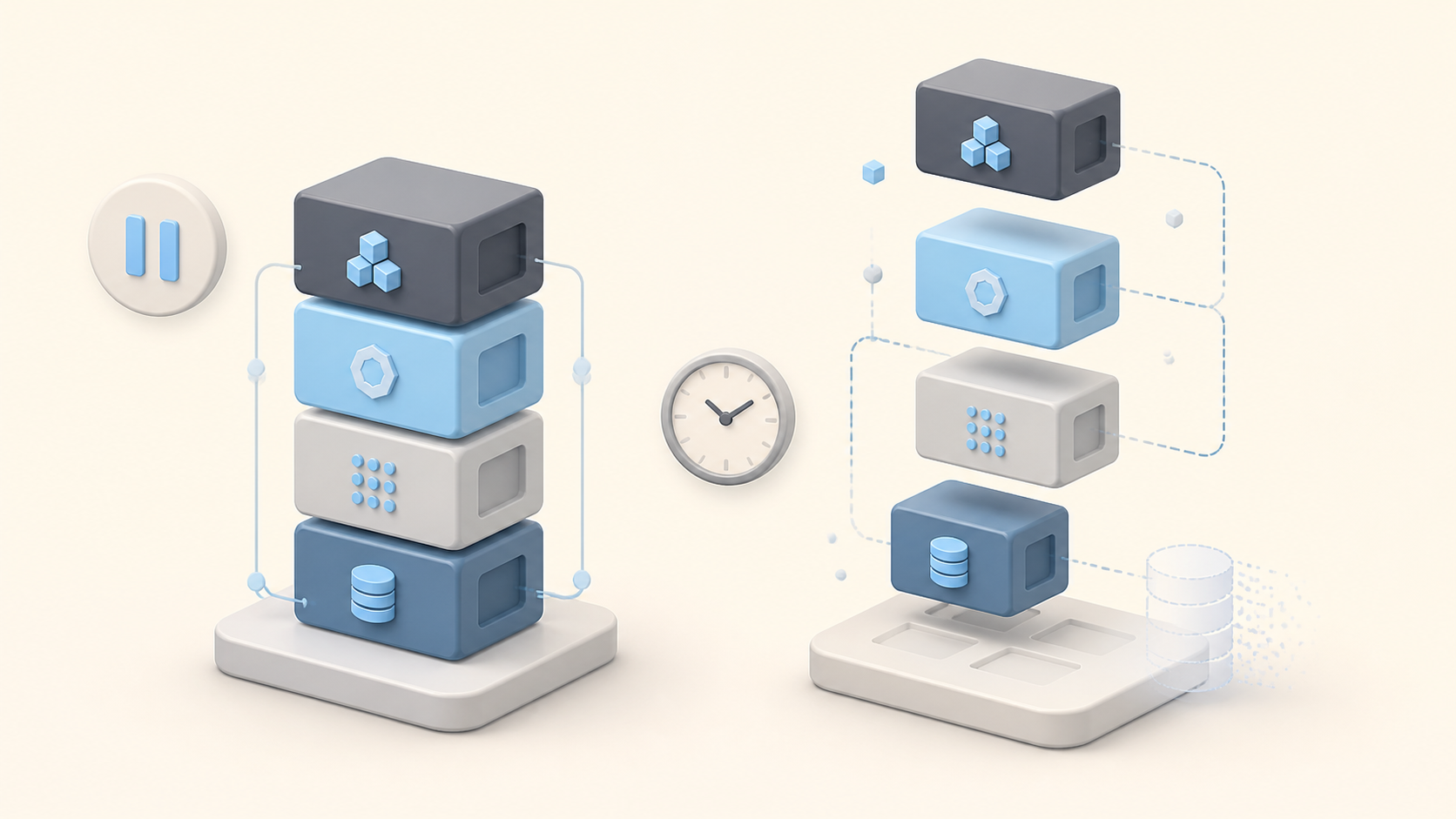
Files written only to a container’s writable layer disappear when that container is removed. A named volume has a separate lifecycle, so its data remains available after the container is deleted. Docker recommends volumes for persistent data generated and used by containers.[5]
docker volume create web-data

docker run \
  --name web-with-data \
  --detach \
  --mount source=web-data,target=/usr/share/nginx/html \
  nginx:1.27-alpineCode language: JavaScript (javascript)
The exact mount target depends on the image. Check the image documentation before mounting over a path because a mount can hide files already present at that location.
Common errors and fixes
| Symptom | Likely cause | Check or fix |
|---|---|---|
pull access denied or manifest unknown | The repository/tag is wrong, private, or unavailable for the current platform. | Confirm the exact image reference, run docker login for a private registry, and inspect the manifest. |
Conflict. The container name is already in use | A running or stopped container already has that name. | Run docker ps -a --filter name=web. Start, rename, or intentionally remove the existing container. |
port is already allocated | Another process or container owns the host port. | Choose another host port, such as 8081:80, or stop the known owner. |
| The container exits immediately | Its main process completed or failed. | Check docker ps -a, docker logs CONTAINER, and docker inspect CONTAINER --format '{{json .State}}'. |
permission denied for the Docker socket | The current user cannot access the daemon socket. | Use the supported Docker Desktop context or follow Docker’s post-installation permissions guidance. Do not make the socket world-writable. |
exec format error | The image platform, binary architecture, or entrypoint format is incompatible. | Check docker image inspect IMAGE --format '{{json .Architecture}}' and the image’s platform support. |
If the process stays up but health checks fail, use the checks in Docker Container Unhealthy. If the entrypoint cannot execute, follow the architecture and script checks in Docker Exec Format Error.
Stop, restart, or remove the container
Use the container name for later lifecycle commands. docker stop requests a normal shutdown, while docker start starts the same stopped container again.
docker stop web
docker start web
For more detail on shutdown behavior, see Docker Stop. Remove the container only when you no longer need its writable-layer changes or configuration:
# Confirm that this is the intended container before removing it.
docker ps -a --filter name=web
docker stop web
docker rm webCode language: PHP (php)
docker rm removes the container object, not the source image and not an independently managed named volume. Avoid broad cleanup commands until you have reviewed what they will delete. The Docker Prune guide explains the scope of each prune operation.
FAQ
Does docker run create a new container every time?
Yes. Each docker run command creates a new container from the selected image. Use docker start to restart an existing stopped container instead.
Can I create a Docker container without starting it?
Yes. Run docker create [OPTIONS] IMAGE. Docker prepares the container and leaves it in the created state until you run docker start CONTAINER.
How do I create a container from a local image?
Use the local repository name and tag with docker run, for example docker run –name app my-app:1.0. Docker uses the local image when that exact reference exists and the pull policy does not require a new pull.
What happens if I omit the image tag?
Docker interprets an image reference without a tag as the latest tag. latest is only a tag name, so pin an explicit tag or digest when repeatability matters.
Does removing a container remove its image or volume?
docker rm removes the container object and its writable layer. It does not remove the source image or an independently managed named volume.

Leave a Reply