


Docker has become an indispensable tool in modern software development, enabling developers to package applications and their dependencies into containers that run consistently across different environments. As container adoption continues to grow—92% of IT professionals reported using containers in 2026, up from 80% the previous year—understanding the core Docker commands is essential for efficient container management. Among these, the docker stop command plays a crucial role in gracefully halting running containers.
What Is the Docker Stop Command?
The docker stop command is used to stop a running Docker container by sending a termination signal. Unlike forcibly killing a container, stopping it allows the containerized application to shut down gracefully, giving it time to clean up resources and save state if necessary.
When you issue docker stop [container], Docker sends a SIGTERM signal to the main process inside the container. If the process does not terminate within a default timeout period (usually 10 seconds), Docker sends a SIGKILL signal to forcibly terminate the container.
Why Use Docker Stop Instead of Docker Kill?
Using docker stop is generally preferred over docker kill because it allows applications to exit cleanly. For example, databases can close connections properly, and web servers can finish processing active requests. Abruptly killing a container can lead to data corruption or inconsistent states.
Graceful shutdowns are especially important in production environments where reliability and data integrity are paramount. As Docker continues to evolve, with initiatives like the Docker AI Agent beta embedding intelligent automation into container workflows, ensuring smooth container lifecycle management becomes even more critical.
Additionally, the docker stop command can be particularly useful in orchestrated environments, such as those managed by Kubernetes or Docker Swarm. In these scenarios, containers often need to be stopped and restarted based on scaling requirements or health checks. Using docker stop allows for a more controlled approach to managing these transitions, minimizing the risk of service disruptions and maintaining overall system stability.
Moreover, developers can customize the timeout period for the docker stop command by appending a time value, like so: docker stop -t [timeout] [container]. This flexibility can be advantageous when dealing with applications that require more time to shut down, such as those that manage extensive data processing tasks or have complex dependency chains. By adjusting the timeout, users can ensure that their applications have the necessary time to complete operations before termination, further safeguarding against potential data loss or corruption.
How the Docker Stop Command Works
Understanding the mechanics behind docker stop helps in troubleshooting and optimizing container management.
Signal Flow and Timeout
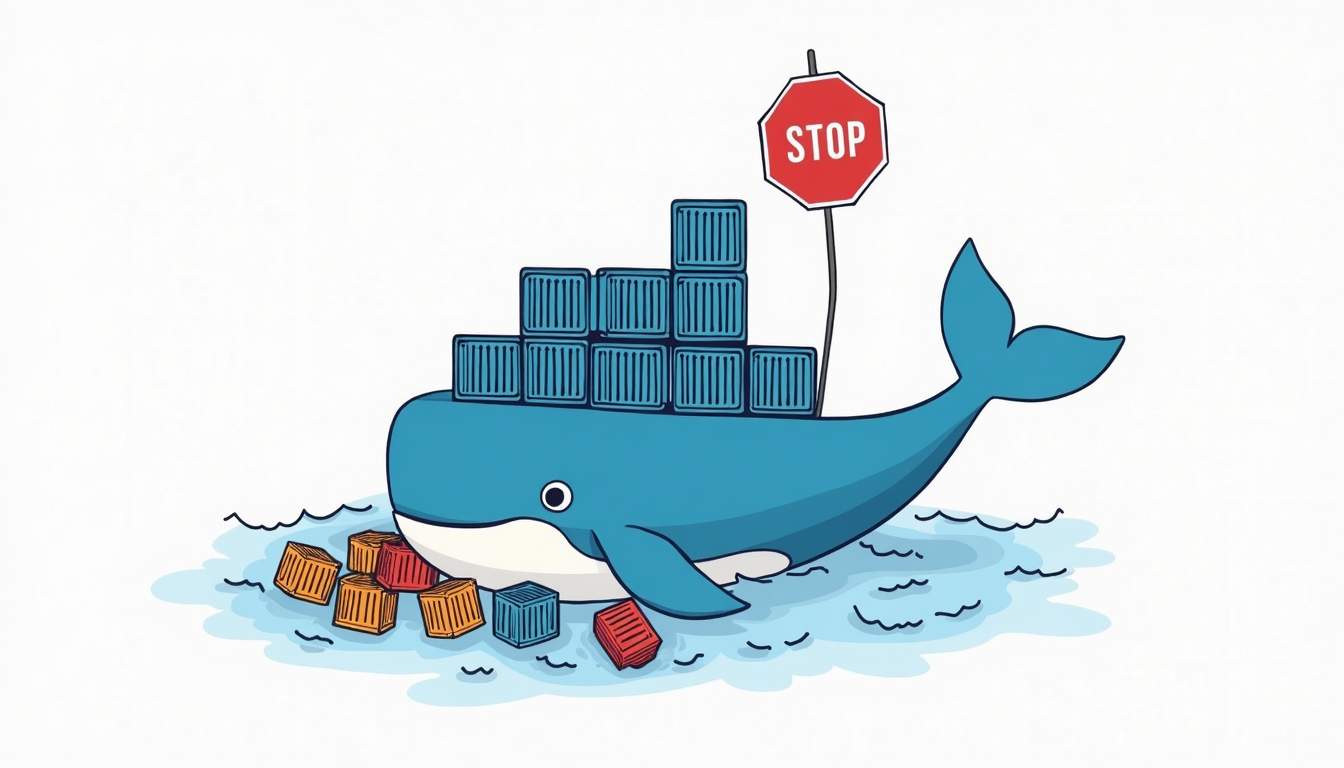
When you run docker stop [container], Docker sends the SIGTERM signal to the container’s main process, signaling it to terminate. This allows the process to perform any necessary cleanup operations, such as closing files or releasing resources.
If the process does not exit within the default timeout (10 seconds), Docker escalates by sending a SIGKILL signal, which immediately terminates the process without cleanup. You can customize this timeout by specifying the number of seconds as an argument, e.g., docker stop -t 20 [container] to wait 20 seconds before killing.
What Happens Inside the Container?
The container’s response to the stop signal depends on the application running inside it. Well-designed applications listen for termination signals and handle them gracefully. For example, a Node.js app might listen for SIGTERM to close open connections and exit cleanly. If the application ignores the signal or takes too long to shut down, Docker will forcefully kill it after the timeout.
Moreover, the behavior of the application can also vary based on its architecture. Microservices, for instance, often have interdependencies with other services. When a service receives a stop signal, it may need to notify other services to stop processing requests or to finish ongoing transactions. This inter-service communication is crucial to maintain data integrity and ensure that no requests are left hanging. Containers orchestrated by platforms like Kubernetes can manage these signals more effectively, allowing for graceful shutdowns across multiple services in a coordinated manner.
Additionally, logging can play a significant role during the stop process. Many applications are configured to log their shutdown procedures, providing insights into what operations were completed before termination. This can be invaluable for debugging issues that arise from abrupt stops. By analyzing these logs, developers can identify patterns or common points of failure, leading to improved application design and more robust handling of termination signals in future iterations.
Practical Usage of Docker Stop
In day-to-day Docker management, the docker stop command is frequently used to manage container lifecycles during development, testing, and production deployments.
Stopping Single and Multiple Containers
Stopping a single container is straightforward:
docker stop container_name_or_idTo stop multiple containers at once, list their names or IDs separated by spaces:
docker stop container1 container2 container3This batch stopping is useful when managing related containers, such as microservices that need to be halted simultaneously. For example, in a microservices architecture, you might have a frontend service, a backend service, and a database service running in separate containers. When performing maintenance or updates, stopping all related containers at once ensures that you maintain the integrity of the application and avoid potential issues that could arise from having some components running while others are not.
Integrating Docker Stop in Deployment Workflows
With the rise of container orchestration and automation, stopping containers programmatically is often part of deployment pipelines. Docker’s ongoing innovation, including AI-powered tooling, aims to simplify these workflows by embedding intelligent automation into build and deployment processes.
For instance, the Docker AI Agent beta, introduced in April 2026, promises to streamline container lifecycle management by automating tasks like stopping containers based on usage patterns or system health, reducing manual intervention and improving operational efficiency. This capability allows teams to focus on higher-level tasks, such as feature development and system architecture, rather than getting bogged down in routine container management. Furthermore, integrating the docker stop command into CI/CD pipelines can help ensure that resources are efficiently utilized, as containers can be stopped and restarted based on the specific needs of the deployment stage, thereby optimizing resource allocation and minimizing costs associated with cloud services.
Common Issues and Best Practices When Using Docker Stop
While docker stop is straightforward, some common pitfalls and best practices help ensure smooth container shutdowns.
Handling Containers That Don’t Stop
Sometimes, containers fail to stop gracefully because the application inside does not respond to SIGTERM or takes too long to shut down. In such cases, Docker will kill the container after the timeout, but this can cause data loss or corruption.
To mitigate this, ensure that your containerized applications are designed to handle termination signals properly. Testing shutdown behavior during development can prevent surprises in production. Implementing a graceful shutdown procedure within your application can also help. For instance, if your application manages connections to a database or external services, ensure it has a mechanism to close these connections cleanly before the process exits. This not only helps maintain data integrity but also enhances the overall reliability of your service.
Monitoring Container Size and Performance
Container size and efficiency impact startup and shutdown times. An empirical study on Docker images found that “smelly” Docker images—those with inefficient or redundant layers—can increase image size by an average of 4.6%, sometimes up to 10%. Larger containers may take longer to stop and restart, affecting deployment speed.
Regularly auditing and optimizing your Docker images can improve container lifecycle performance, making docker stop operations faster and more reliable. Tools like Docker’s built-in image pruning commands or third-party solutions can help identify and eliminate unnecessary layers, thereby streamlining your images. Additionally, consider using multi-stage builds to keep your final images lean by only including the necessary artifacts for production, which can significantly reduce both size and complexity.
Security Considerations
Security vulnerabilities in container images can also affect container stability. A study analyzing 2,500 Docker Hub images revealed that certified images tend to be more vulnerable compared to official images, which are generally more secure and stable.
Using official images and keeping them up to date reduces the risk of security issues that might cause containers to behave unpredictably during stop or start operations. Furthermore, implementing security scanning tools as part of your CI/CD pipeline can help identify vulnerabilities before they reach production. Regular updates and patching are essential, as vulnerabilities can be discovered post-release, making it crucial to monitor for updates and apply them promptly to maintain a secure and stable environment.
Advanced Docker Stop Usage and Alternatives
Beyond basic usage, there are advanced techniques and alternative commands that complement docker stop for container management.
Customizing Stop Timeout
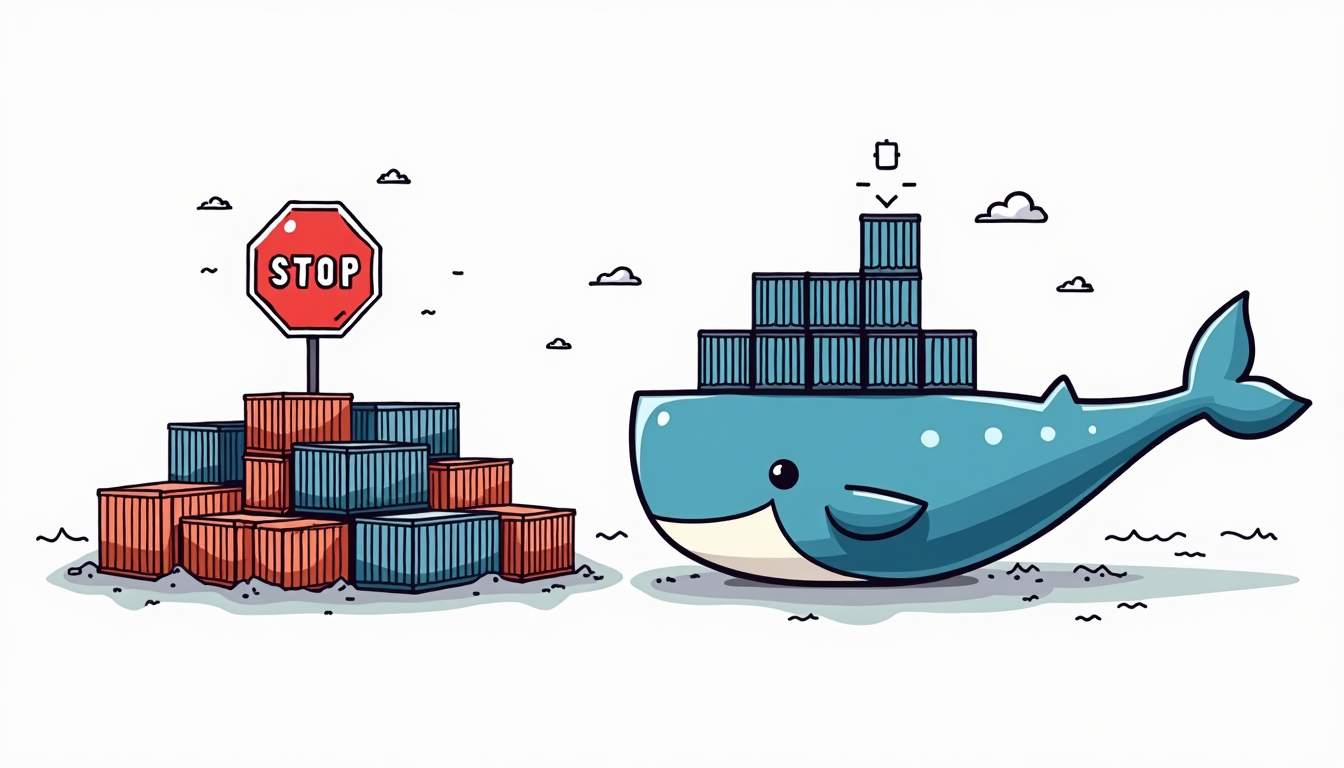
By default, Docker waits 10 seconds after sending SIGTERM before sending SIGKILL. You can adjust this timeout to better suit your application’s shutdown needs:
docker stop -t 30 container_nameThis command waits 30 seconds, giving long-running applications more time to clean up.
Using Docker Pause as an Alternative
If you want to temporarily suspend a container without stopping it, docker pause freezes all processes inside the container. This can be useful for debugging or resource management without triggering shutdown procedures.
Combining Docker Stop with Docker Restart
Sometimes, stopping a container is part of a restart cycle. The docker restart command stops and then immediately starts a container, combining the stop and start steps. This is useful for applying configuration changes or recovering from transient errors.
Conclusion
Mastering the docker stop command is fundamental for anyone working with Docker containers. It enables graceful shutdowns, preserving application state and preventing data loss. As Docker usage continues to surge—with billions of container pulls monthly and increasing adoption across the IT industry—understanding container lifecycle commands is more important than ever.
Developers and IT teams should prioritize designing applications that handle termination signals properly, optimize container images to reduce size and complexity, and stay informed about evolving Docker features like AI-driven automation tools. These practices ensure that docker stop and related commands contribute to stable, secure, and efficient container environments.



Leave a Reply