

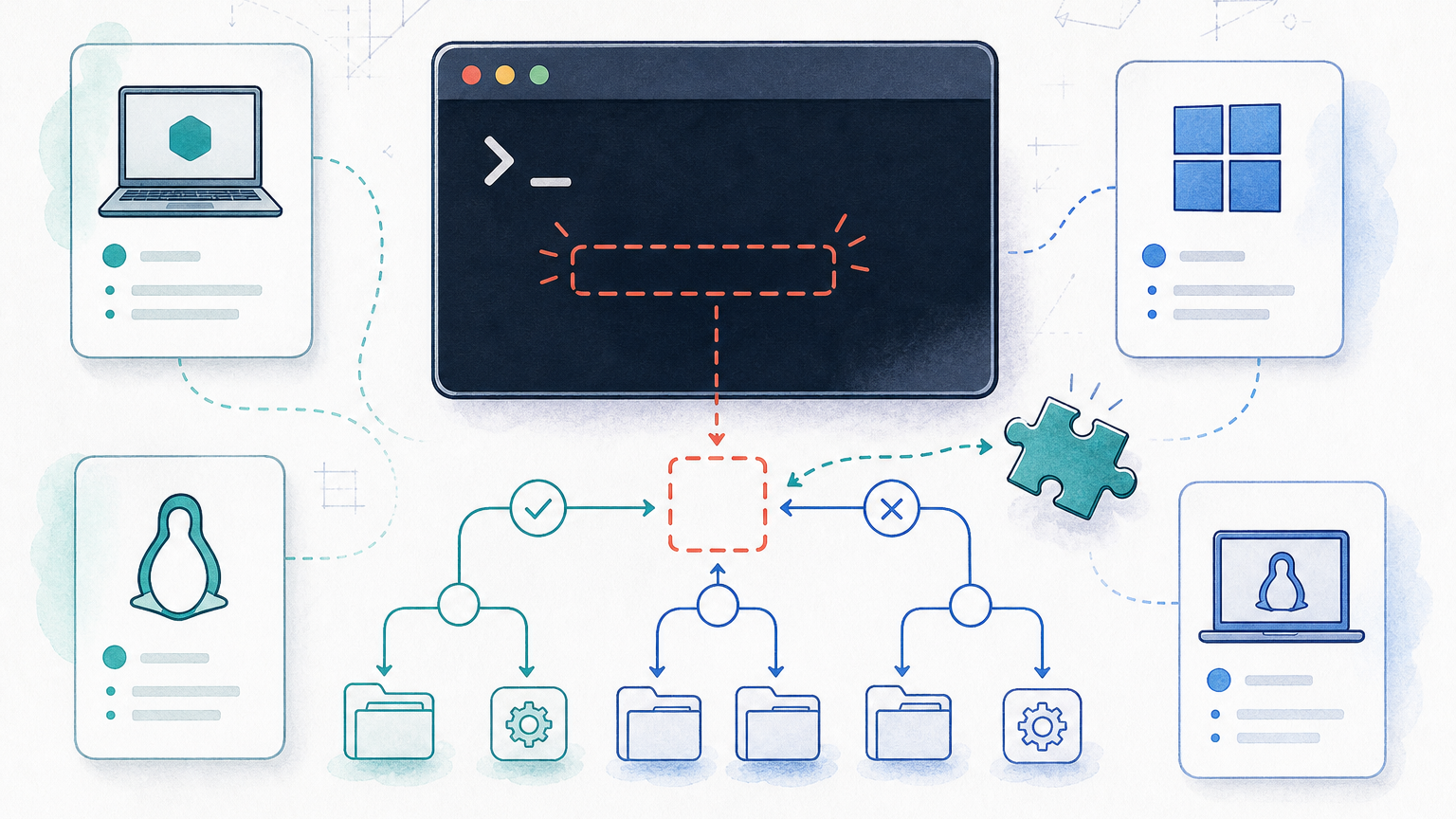
Updating Docker is mostly a package manager or Docker Desktop update, but the safe path is the same everywhere: check your current version, stop risky workloads, update Docker, restart the daemon or Desktop app, then verify both Docker Engine and Docker Compose.
Quick takeaway: On Linux, update Docker through your distro package manager. On macOS and Windows, update Docker Desktop. After the update, run
docker version,docker info, anddocker compose versionbefore trusting production workflows.
Before You Update Docker
Do not start with the update command. First check what is installed and whether the host is running containers that matter. This is especially important on shared Linux hosts, CI runners, and development machines with local volumes.
docker version
docker info
docker compose version
If the host runs Compose projects, check what is active before you restart anything. For service lifecycle basics, see Docker Compose Up and Docker Compose Down.
docker ps
docker compose ls- Back up important bind mounts, named volumes, or databases before updating a production host.
- Read the Docker release notes if the host runs critical workloads.
- Plan a maintenance window if containers must stay available.
- Know how to roll back the package or Docker Desktop version if your team depends on a specific behavior.
How to Update Docker on Ubuntu or Debian
For most Ubuntu and Debian installs, Docker Engine is managed by apt. Refresh package metadata, update Docker packages, then restart and verify the service.
sudo apt-get update
sudo apt-get install --only-upgrade docker-ce docker-ce-cli containerd.io docker-buildx-plugin docker-compose-plugin
sudo systemctl restart docker
docker version
docker compose versionCode language: JavaScript (javascript)
Production note: restarting the Docker daemon can interrupt running containers that do not have a restart policy. Check docker ps first on shared hosts.
If Docker was installed from the distro repository instead of Docker’s official repository, package names may differ. Check before you remove or replace anything.
apt-cache policy docker-ce docker.io containerd.ioCode language: CSS (css)How to Update Docker on RHEL, Fedora, CentOS, or Rocky Linux
On RPM-based systems, use dnf or yum depending on the OS version. Fedora 22+ and RHEL 8+ generally use dnf; older CentOS 7-style systems usually use yum. The package names are usually the Docker Engine package, CLI package, containerd, Buildx, and the Compose plugin.
sudo dnf update docker-ce docker-ce-cli containerd.io docker-buildx-plugin docker-compose-plugin
sudo systemctl restart docker
docker version
docker compose versionCode language: CSS (css)
Older CentOS-style systems may use yum instead of dnf.
sudo yum update docker-ce docker-ce-cli containerd.io docker-buildx-plugin docker-compose-plugin
sudo systemctl restart dockerCode language: CSS (css)
How to Update Docker on macOS
On macOS, Docker usually means Docker Desktop. Use the built-in updater or install the latest Docker Desktop package from Docker. After the app restarts, verify from Terminal.
docker version
docker info
docker compose version
If commands fail after the Desktop update, quit Docker Desktop completely, reopen it, and wait until the whale icon says Docker is running. Then re-run the checks.
How to Update Docker on Windows
On Windows, update Docker Desktop from the app menu or by installing the current Docker Desktop installer. If you use WSL 2, check Docker from both PowerShell and the Linux distro where you run commands.
docker version
docker info
docker compose version
If WSL integration breaks after the update, open Docker Desktop settings and confirm the target WSL distro is enabled. Then restart Docker Desktop and the WSL distro.
wsl --shutdownCheck Docker Compose After Updating Docker
Modern Docker installs use Compose v2 as a Docker CLI plugin: docker compose. Older systems may still have the standalone docker-compose binary. Mixing both can make teams think Docker was updated when Compose is still old.
docker compose version
which docker-compose || true
docker-compose version || trueCode language: JavaScript (javascript)
If your update touches Compose projects, test one non-critical stack before moving on. docker compose config validates and prints the final Compose configuration, which is a useful check before you pull or restart services. If restart behavior matters, review your Docker Compose restart policy before changing production containers.
docker compose config
docker compose pull
docker compose up -d
docker compose ps
Verify Containers After the Update
A successful update is not just a new version number. Check the daemon, running containers, logs, networks, volumes, and at least one build or pull workflow. The hello-world container is a quick smoke test that confirms the client can talk to the daemon and pull/run an image.
docker ps
docker images
docker network ls
docker volume ls
docker run --rm hello-world
If local data matters, double-check mounted paths and named volumes. The Docker Compose volumes guide explains the difference between bind mounts and named volumes.
Common Docker Update Mistakes
Most Docker update problems come from skipping verification or updating only part of the stack. These are the mistakes worth avoiding.
- Updating Docker Engine but forgetting the Compose plugin.
- Restarting Docker on a production host without checking running containers first.
- Assuming Docker Desktop and WSL integration restarted cleanly.
- Using old
docker-composeexamples when the host uses Compose v2. - Deleting images, containers, or volumes as part of “cleanup” without checking what data they contain.
If you need to rebuild images after updating Docker, use a clean Dockerfile flow instead of changing live containers by hand. Start with build a Docker image from a Dockerfile, and check Dockerfile ENTRYPOINT if container startup behavior changes after a rebuild.
Troubleshooting Docker Update Issues
Use this section as a quick triage path. Start with the daemon, then check Compose, and only then debug individual containers.
Docker Service Does Not Start
Check the service status first. The logs usually tell you whether the problem is a daemon config issue, a package mismatch, or a missing dependency.
sudo systemctl status docker --no-pager
sudo journalctl -u docker --no-pager -n 80
Docker Compose Command Is Missing
If docker compose is missing after the update, install or update the Compose plugin package for your platform.
docker compose version
sudo apt-get install docker-compose-pluginCode language: JavaScript (javascript)
Containers Fail After the Update
Start with logs and image compatibility. If the container starts but exits, the issue is usually application config, entrypoint behavior, permissions, or a changed dependency.
docker ps -a
docker logs <container-name>
docker inspect <container-name>Code language: HTML, XML (xml)
FAQ
How do I check my Docker version before updating?
Run docker version for client and server details. Also run docker compose version because Compose can be updated separately from Docker Engine.
Do I need to stop containers before updating Docker?
For a personal development machine, often no. For shared or production hosts, check running containers first and plan a maintenance window if downtime matters.
What is the difference between docker compose and docker-compose?
docker compose is Compose v2, shipped as a Docker CLI plugin. docker-compose is the older standalone binary. After updating Docker, verify which one your scripts use.
How do I update Docker Desktop?
On macOS and Windows, use Docker Desktop’s built-in update flow or install the latest Docker Desktop package. Restart Docker Desktop and verify with docker version and docker compose version.
Should I remove old Docker images after updating?
Not immediately. First verify containers, builds, and Compose projects. Clean up images only after you know the update works and you understand what each cleanup command deletes.

Leave a Reply