

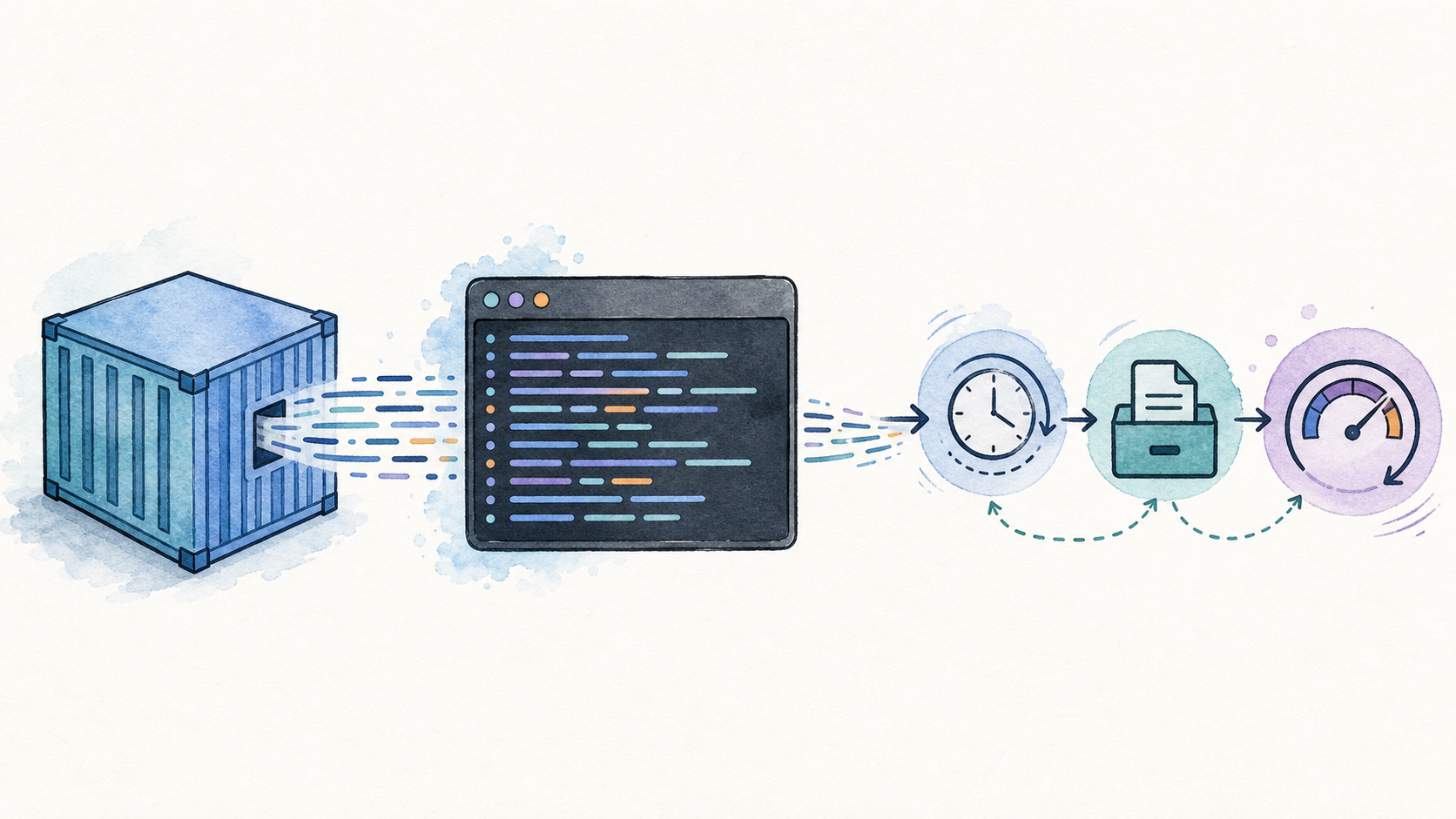
When a container fails, restart loops, or looks healthy but behaves badly, logs are usually the first useful signal. The useful part is knowing which command to run, how much output to read, where Docker keeps the log file, and when docker logs is the wrong layer to debug.
Quick takeaway: Use
docker logsfor one container,docker compose logsfor a Compose service or stack, and logging-driver settings for retention. Do not treat the raw JSON log file as an editor-friendly application log.
This guide covers the Docker logs command and the practical follow-up question: where are Docker logs stored? For broader container basics, start with Docker Containers: The Complete Guide.
Fast Command Cheatsheet
Start with the smallest command that answers the incident question. Add filters only when the output is too noisy.
# recent logs for one container
docker logs --tail 100 <container>

# follow new lines while reproducing the issue
docker logs --follow --tail 100 <container>

# logs since a time window
docker logs --since 30m <container>
docker logs --since 2026-07-01T08:00:00 <container>

# include timestamps from the Docker log stream
docker logs --timestamps --tail 200 <container>Code language: Bash (bash)| Need | Command | When to use it |
|---|---|---|
| Recent output | docker logs --tail 100 app | First check during a noisy incident |
| Live stream | docker logs --follow app | Reproduce a request and watch new lines |
| Time window | docker logs --since 30m app | Match logs to an alert window |
| Compose service | docker compose logs web | Debug one service inside a Compose project |
| Whole stack | docker compose logs --tail 100 | See dependencies around the failing service |
What Docker Logs Actually Reads
Docker’s container logs reference defines docker logs as the command for fetching logs from a container. In practice, it reads the stream captured by the configured logging driver. With the default driver, that means stdout and stderr from the container process.
That distinction matters. If the application writes only to an internal file such as /var/log/app.log, Docker may not show it. Containers are easier to operate when the main process writes useful logs to stdout and stderr.
Operator note: If
docker logsis empty, check whether the process logs to a file inside the container, whether the container exits before writing anything, and which logging driver the container uses.
Read Logs From One Container
For a single container, identify the container name or ID first, then read a bounded amount of output. Avoid dumping the full log on busy services.
docker ps --format 'table {{.Names}}	{{.Status}}	{{.Image}}'
docker logs --tail 200 web
docker logs --since 15m webCode language: Bash (bash)
If the container is restarting, pair logs with status and exit information. For architecture or entrypoint startup failures, the Docker Exec Format Error guide shows how the failing executable often appears in the first log lines.
Follow Logs While Reproducing a Bug
Use follow mode when you can reproduce the problem. Keep a tail limit so the terminal starts at a useful point instead of replaying everything.
docker logs --follow --tail 100 api
# short form if you prefer it
docker logs -f --tail 100 apiCode language: Bash (bash)
In production, live-following logs is a debugging move, not an observability strategy. For retained logs, alerts, and search, ship logs to a proper logging backend through the logging driver, sidecar, or platform agent.
Use Time Windows Instead of Guessing
The most useful log query is usually tied to an alert timestamp, deployment time, restart time, or failed request. Use a relative window first, then switch to timestamps when you need a precise range.
docker logs --since 1h worker
docker logs --since 2026-07-01T08:00:00 --until 2026-07-01T08:30:00 worker
docker logs --timestamps --since 30m workerCode language: Bash (bash)
Timestamps are especially useful when you compare Docker output with metrics, health checks, or orchestrator events. If the failure is a health check loop, use logs next to the checks in the Docker Container Unhealthy guide.
Read Docker Compose Logs
The official docker compose logs reference covers stack-level logging. In day-to-day debugging, Compose logs are useful because they keep service names in view and let you isolate one service without losing context.
# all services in the current Compose project
docker compose logs --tail 100

# one service
docker compose logs --tail 100 web

# follow one service while restarting it
docker compose logs --follow --tail 100 webCode language: Bash (bash)
Use Compose logs together with Docker Compose Up when a stack fails during startup, and with Docker Compose Down when you need a safe reset path after reading the evidence.
Where Docker Logs Are Stored
With Docker Engine on Linux and the default json-file logging driver, container logs live under /var/lib/docker/containers/<container-id>/<container-id>-json.log. Docker documents this behavior in the JSON File logging driver page.
docker inspect --format='{{.LogPath}}' <container>
# example output:
# /var/lib/docker/containers/<id>/<id>-json.logCode language: Bash (bash)| Environment | Where to look first | Caveat |
|---|---|---|
| Linux Engine, json-file driver | docker inspect --format='{{.LogPath}}' app | Usually under /var/lib/docker/containers/... |
| Docker Desktop | Use Docker Desktop UI or docker logs | The Linux VM path is not a normal host filesystem path |
| Non-default logging driver | docker inspect --format='{{.HostConfig.LogConfig.Type}}' app | Logs may be sent to journald, syslog, fluentd, awslogs, or another driver |
Do not edit Docker log files while Docker owns them. The raw JSON file is implementation detail, not a safe application log interface. Prefer
docker logs, log rotation, or your logging backend.
Check the Logging Driver
Docker logging behavior depends on the selected driver. The Configure logging drivers documentation explains that the daemon has a default logging driver and containers can override it. Check the driver before assuming a JSON file exists.
docker inspect --format='{{.HostConfig.LogConfig.Type}}' <container>
docker info --format '{{.LoggingDriver}}'Code language: Bash (bash)
If the driver is not json-file, the location question changes. For example, logs may go to journald, syslog, Fluentd, or a cloud logging service. In that case, Docker may still show recent output depending on the driver, but the durable source of truth is the configured backend.
Rotate Logs Before They Fill the Disk
The common failure mode is not “I cannot find the logs.” It is “the logs filled the disk.” Solve that with rotation policy, not by manually deleting active files.
{
  "log-driver": "json-file",
  "log-opts": {
    "max-size": "10m",
    "max-file": "3"
  }
}Code language: JSON / JSON with Comments (json)
After changing daemon-level logging settings, new containers use the new defaults. Existing containers may need to be recreated for the setting to apply. For Compose services, recreate the service after you update logging options or daemon configuration.
Troubleshooting Flow
Use this sequence when logs are part of an incident and you need evidence before changing the container.
- Identify the exact container or Compose service that failed.
- Read recent logs with a tail limit first.
- Use a time window that matches the alert, deployment, or restart.
- Check container status, exit code, and restart count next to the logs.
- Check the logging driver before looking for a raw log file.
- If logs are empty, verify where the application writes output.
- If disk is full, preserve evidence, stop the right workload, clean up safely, and configure rotation before restart.
If the container restarts forever, combine this flow with Docker Compose Restart Policy so the restart policy does not hide the first useful error.
Common Mistakes
| Mistake | Why it hurts | Better move |
|---|---|---|
Running docker logs app with no tail on a busy service | It floods the terminal and hides the useful window | Start with --tail and --since |
| Opening the raw JSON log in an editor | Docker still owns the file and format | Use docker logs or export a copy if needed |
Assuming all logs are under /var/lib/docker | Non-default drivers and Docker Desktop change the answer | Inspect LogPath and the logging driver |
| Deleting logs without fixing rotation | The disk fills again | Set max-size and max-file |
| Debugging only one service in a multi-service failure | Dependency failures can appear in another service | Use docker compose logs across the stack |
Sources Used for This Guide
This guide was checked against Docker documentation for docker container logs, docker compose logs, viewing container logs, the json-file logging driver, and logging driver configuration.
Related RepoNotes Docker guides are linked where they help with container basics, Compose startup, safe resets, restart policies, health checks, and startup architecture errors.
FAQ
What is the Docker logs command used for?
The Docker logs command prints stdout and stderr from a container. Use it to inspect startup errors, application exceptions, health check failures, and recent runtime output without entering the container.
How do I follow Docker logs in real time?
Use docker logs with the follow option when you want a live stream from one container. For Compose projects, use docker compose logs with follow so you can watch one service or the whole stack while reproducing the issue.
Where are Docker container logs stored?
With the default json-file driver on Linux, container logs are stored under /var/lib/docker/containers//-json.log. Do not edit that file directly while Docker owns it; use logging driver settings and rotation instead.
How do I view Docker Compose logs for one service?
Run docker compose logs followed by the service name. Add tail and follow options when you want only recent lines and a live stream during a restart or deployment test.
Can I clear Docker logs safely?
The safer fix is log rotation, not manual truncation during an incident. If a json-file log already filled the disk, stop the container or Docker service first, preserve evidence if needed, then clean up and configure max-size and max-file before restarting.


Leave a Reply