


If you need Terraform on Ubuntu, the safest default is to install it from HashiCorp’s official APT repository, then verify the binary your shell is using. Snap and manual binary installs also work, but they are better treated as special cases rather than the team default.
Quick takeaway: Use the HashiCorp APT repository for repeatable Ubuntu installs. Use Snap for quick local experiments. Use manual binaries only when you need a specific pinned version and you are ready to manage upgrades yourself.
This guide shows the practical install path, the verification commands, and the common fixes for terraform: command not found, repository errors, and version mismatches.
Before You Install Terraform on Ubuntu
Start with a supported Ubuntu release, a user that can run sudo, and a clean terminal session. The official HashiCorp install reference is the best source for package repository details, but the workflow below keeps the commands copy-safe for a typical Ubuntu machine.
- Use APT when you want normal package updates and a standard team setup.
- Use Snap only when you understand the packaging trade-offs for your environment.
- Use a manual binary when you need a specific Terraform version and do not want package-manager upgrades.
- Do not run everyday Terraform workflows as root unless your project truly requires it.
Method 1: Install Terraform from the HashiCorp APT Repository
This is the best default for most Ubuntu systems. It adds the HashiCorp package signing key, configures the APT source, installs Terraform, and lets future updates come through apt.
Install prerequisites
sudo apt-get update
sudo apt-get install -y gnupg software-properties-common curl lsb-releaseCode language: JavaScript (javascript)
Add the HashiCorp signing key
curl -fsSL https://apt.releases.hashicorp.com/gpg | sudo gpg --dearmor -o /usr/share/keyrings/hashicorp-archive-keyring.gpgCode language: JavaScript (javascript)If the file already exists, review whether it came from a previous HashiCorp install before overwriting it. On managed servers, package source changes should usually go through your normal change-control process.
Add the HashiCorp APT repository
echo "deb [signed-by=/usr/share/keyrings/hashicorp-archive-keyring.gpg] https://apt.releases.hashicorp.com $(lsb_release -cs) main" | sudo tee /etc/apt/sources.list.d/hashicorp.listCode language: PHP (php)Install Terraform
sudo apt-get update
sudo apt-get install -y terraformCode language: JavaScript (javascript)
Verify the installed version
terraform -version
which terraform
The version check matters because machines often have more than one Terraform binary over time: one from APT, one from Snap, or one manually copied into /usr/local/bin.
Method 2: Install Terraform with Snap
Snap can be convenient on a personal workstation, but it is not my first recommendation for production-like servers or shared CI images. Package confinement and PATH behavior can be different from a normal APT install.
sudo snap install terraform --classic
terraform -version
which terraform
Practical caveat: If you are documenting a team standard, pick one installation method. Mixing APT, Snap, and manual binaries makes troubleshooting much harder.
Method 3: Manual Terraform Binary Install
Manual installation is useful when you need an exact Terraform version and cannot use the package repository. The trade-off is that you own the upgrade and cleanup process.
# Example shape only: replace VERSION with the version you intend to pin
VERSION="1.13.5"
curl -LO "https://releases.hashicorp.com/terraform/${VERSION}/terraform_${VERSION}_linux_amd64.zip"
unzip "terraform_${VERSION}_linux_amd64.zip"
sudo install -m 0755 terraform /usr/local/bin/terraform
terraform -versionCode language: PHP (php)
Before using a manually downloaded binary, verify the version and source from HashiCorp’s release page. Do not copy a Terraform binary from a random blog post, CI artifact, or teammate’s machine.
How to Switch or Clean Up Terraform Install Methods
If Terraform behaves differently than expected, first check which binary is being executed. Then remove the install method you do not want.
which terraform
type -a terraform
terraform -version
Remove the APT package
sudo apt-get remove -y terraform
sudo rm -f /etc/apt/sources.list.d/hashicorp.listCode language: PHP (php)
Remove the Snap package
sudo snap remove terraformRemove a manual binary
sudo rm -f /usr/local/bin/terraform
hash -r
which terraform || trueCode language: JavaScript (javascript)
The hash -r command clears your shell’s cached command lookup in Bash. Opening a new terminal has the same practical effect for most users.
Troubleshooting Common Terraform Install Problems
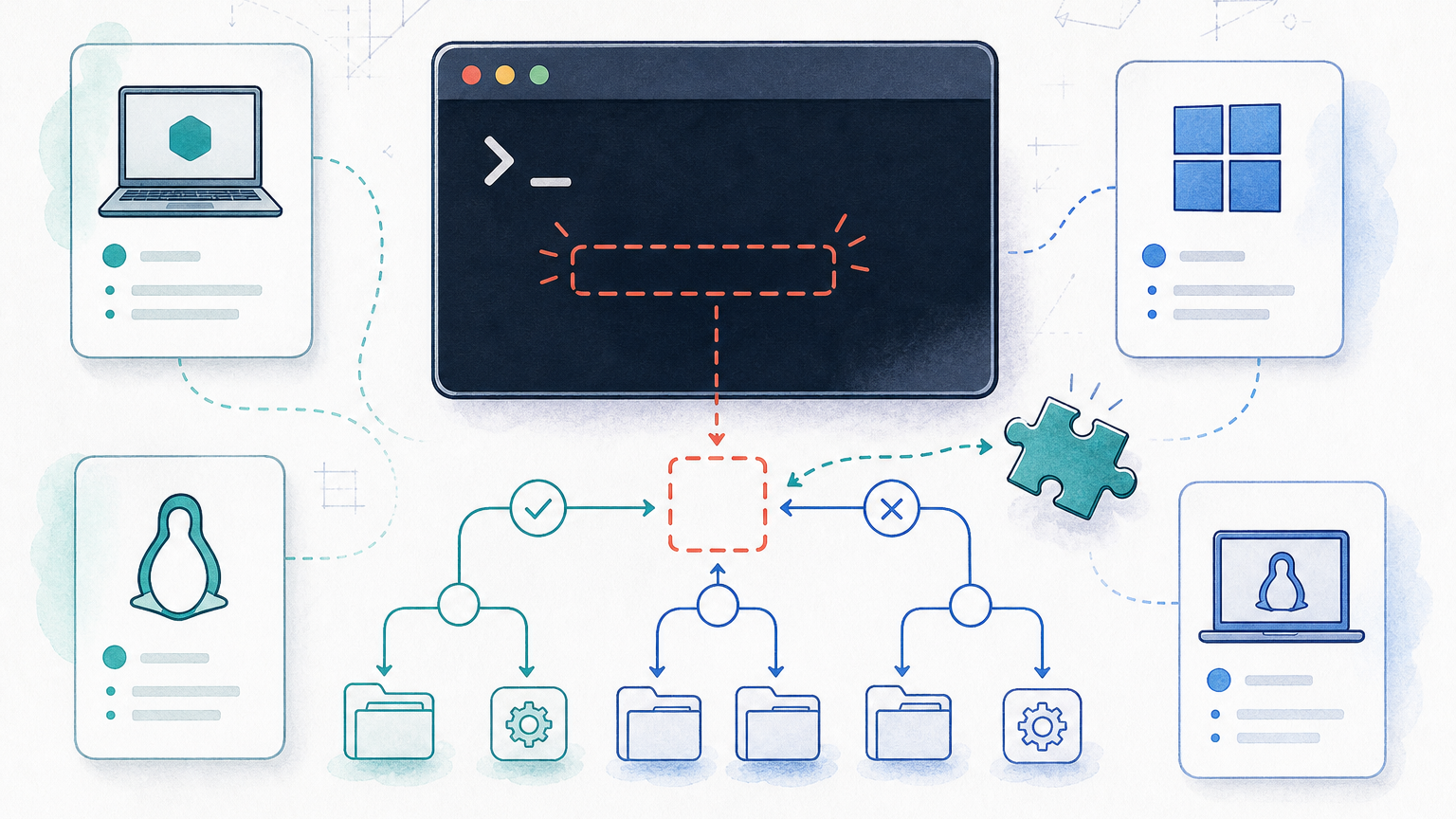
Most install issues come down to one of three things: the package source was not added correctly, the shell is finding a different Terraform binary, or the binary is not in your PATH.
terraform: command not found
This usually means Terraform is not installed, your shell cannot see the binary, or you installed it with a method that placed it outside the PATH you are using.
which terraform
echo "$PATH"
type -a terraformCode language: PHP (php)
If which terraform returns nothing, reinstall through the APT method or add the binary location to your PATH. If it returns an unexpected path, remove the old install method or call the intended binary explicitly.
APT repository or GPG key errors
If apt-get update fails after adding the repository, check the distribution codename and whether the keyring file exists.
lsb_release -cs
ls -l /usr/share/keyrings/hashicorp-archive-keyring.gpg
cat /etc/apt/sources.list.d/hashicorp.listCode language: PHP (php)
A mismatch here often happens when a command was copied from an old guide, run on a non-Ubuntu base image, or pasted with a broken quote character.
Wrong Terraform version after install
If terraform -version shows an older or unexpected version, you probably have multiple binaries. Use type -a terraform to see all candidates in PATH order.
type -a terraform
terraform -version
Basic Post-Install Sanity Check
After installation, create a tiny local test only if you are comfortable writing temporary files in the current directory. You do not need cloud credentials just to confirm the CLI runs.
mkdir -p /tmp/terraform-smoke-test
cd /tmp/terraform-smoke-test
cat > main.tf <<'EOF'
terraform {
  required_version = ">= 1.0"
}
EOF
terraform initCode language: JavaScript (javascript)
This checks that the CLI starts, reads a configuration file, and initializes the working directory. It does not create cloud infrastructure.
Best Practices for Ubuntu Terraform Installs
- Prefer the official HashiCorp APT repository for team machines and CI images.
- Pin Terraform versions per project with
required_version, not only by whatever happens to be installed globally. - Verify
terraform -versionandwhich terraformbefore debugging provider or module errors. - Keep normal Terraform project files owned by your user, not root.
- Document the install method in your project README or onboarding notes.
For adjacent DevOps fundamentals, see Cloud-Native DevOps and DevOps Coding. For the official CLI reference, use HashiCorp’s Terraform install documentation.
FAQ
What is the best way to install Terraform on Ubuntu?
For most Ubuntu servers and workstations, use the official HashiCorp APT repository. It gives you normal package updates through apt and avoids random binaries copied into your PATH.
Can I install Terraform with snap?
Yes, but use it deliberately. Snap can be convenient for local experiments, but the APT repository is usually easier to audit and standardize on team machines or CI runners.
How do I check which Terraform version is installed?
Run terraform -version and which terraform. The first command shows the Terraform version; the second shows which binary your shell is actually executing.
Why does Ubuntu say terraform: command not found?
Either Terraform is not installed, the binary is outside your PATH, or your shell has not picked up the new PATH yet. Check which terraform, reinstall through APT, or open a new shell session.
Should I install Terraform with sudo?
Use sudo for package installation, but do not run normal Terraform plans and applies with sudo unless you have a specific filesystem or provider reason. Keep project files owned by your user.

Leave a Reply