


Google Cloud Storage is a foundational service for businesses and developers looking to store and manage data securely and efficiently in the cloud. As cloud adoption accelerates globally, with the cloud storage market projected to grow substantially in the coming decade, understanding how to create and configure storage buckets is essential for leveraging Google Cloud’s powerful infrastructure.
In this comprehensive guide, you will learn how to create a Google Cloud Storage bucket from scratch, along with best practices for configuration and security. Whether you are a developer, IT professional, or business user, this step-by-step tutorial will help you get started with confidence.
Why Use Google Cloud Storage Buckets?
Google Cloud Storage offers a highly scalable, durable, and secure environment for storing objects such as images, videos, backups, and large datasets. It integrates seamlessly with Google’s AI and analytics platforms, making it a preferred choice for enterprises worldwide. With its global network of data centers, Google Cloud Storage ensures that your data is not only accessible but also resilient against outages, providing peace of mind for businesses that rely on constant uptime.
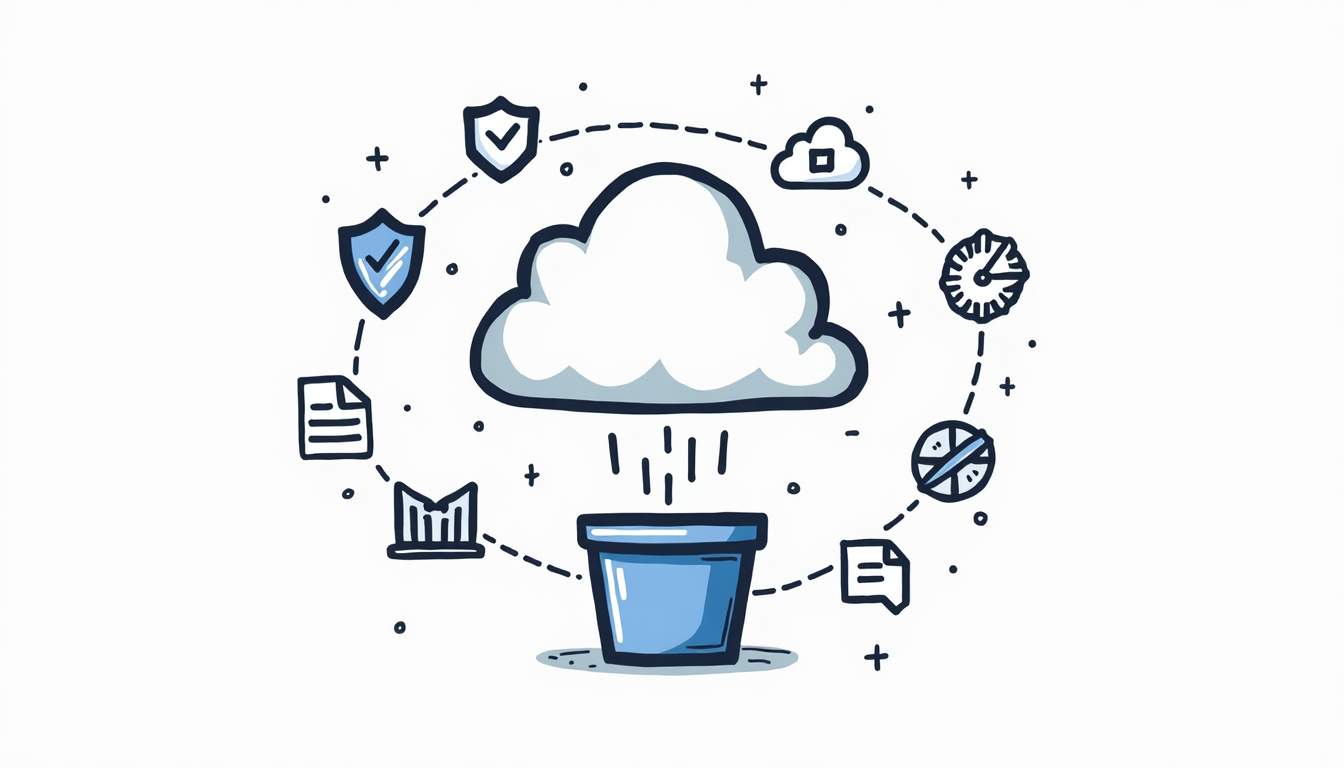
Recent developments like Google’s Filestore Turbo have significantly improved performance by reducing latency by over 48% and boosting throughput by 65%, attracting more than half of Fortune 500 companies to adopt Google Cloud’s AI services. This performance boost means faster data access and better user experiences for applications relying on cloud storage. Furthermore, with features like automatic data replication and multi-region availability, users can ensure that their data is both secure and readily available, regardless of geographical location.
Moreover, Google Cloud’s leadership in data management and analytics platforms, recognized by Forrester and Gartner, ensures that users benefit from cutting-edge technology and robust support. The platform’s advanced security measures, including encryption at rest and in transit, provide an additional layer of protection against unauthorized access. Additionally, Google Cloud’s commitment to sustainability, including carbon-neutral operations, appeals to organizations looking to minimize their environmental impact while leveraging powerful cloud solutions.
In addition to its technical advantages, Google Cloud Storage offers a user-friendly interface and comprehensive documentation, making it easy for developers and IT teams to implement and manage their storage solutions. The integration with tools like Google BigQuery allows for seamless data analysis, enabling businesses to derive actionable insights from their stored data. As more organizations pivot towards data-driven decision-making, the ability to efficiently store and analyze large volumes of data becomes increasingly critical, positioning Google Cloud Storage as a vital component of modern IT infrastructure.
Understanding Google Cloud Storage Buckets
A storage bucket in Google Cloud is a container for storing objects. Each bucket is associated with a project and resides in a specific geographic location. Buckets are the primary organizational unit for your data and control how data is stored, accessed, and managed.
Before creating a bucket, it’s important to understand key concepts such as bucket location, storage class, and access control, as these settings impact cost, performance, and security.
Bucket Location
The location determines where your data physically resides. You can choose from multi-region, dual-region, or region-specific locations. Selecting the right location affects latency and availability. For example, multi-region buckets provide higher availability and redundancy, while region-specific buckets can reduce costs if your users are concentrated in one area. Additionally, understanding the implications of data residency laws and regulations in different regions can influence your choice, especially for businesses that operate in multiple jurisdictions. Compliance with local data protection regulations, such as GDPR in Europe, requires careful consideration of where your data is stored.
Storage Class
Google Cloud offers several storage classes tailored to different use cases:
- Standard: For frequently accessed data with low latency requirements.
- Nearline: For data accessed less than once a month.
- Coldline: For data accessed less than once a quarter.
- Archive: For long-term archival with infrequent access.
Choosing the appropriate storage class helps optimize costs without compromising accessibility. It’s also worth noting that Google Cloud provides automatic transitions between storage classes based on the frequency of access, allowing you to maintain cost efficiency as your data usage patterns evolve. This feature can be particularly beneficial for businesses that experience fluctuating data access needs, enabling them to adapt without manual intervention.
Access Control
Security is paramount when managing cloud storage. Google Cloud Storage supports Identity and Access Management (IAM) policies and Access Control Lists (ACLs) to regulate who can view or modify your data. Misconfigured buckets have been a source of data leaks, including sensitive medical and voter records, highlighting the importance of careful security configuration. Moreover, Google Cloud provides audit logging capabilities, which allow you to track access and changes to your buckets. This feature is essential for maintaining compliance and understanding user behavior, as it enables administrators to identify unauthorized access attempts and respond proactively. Implementing a principle of least privilege in your IAM policies can further enhance security, ensuring that users have only the permissions necessary to perform their tasks.
Step-by-Step Guide to Creating a Google Cloud Storage Bucket
Step 1: Set Up a Google Cloud Project
Before creating a bucket, you need a Google Cloud project. This project acts as a container for your resources and billing.
- Go to the Google Cloud Console.
- Click on the project dropdown at the top and select New Project.
- Enter a project name and billing account, then click Create.
Once your project is ready, you can proceed to create a storage bucket within it. Remember that your project name should be descriptive enough to help you and your team easily identify its purpose in the future. This can be particularly useful as your organization grows and you manage multiple projects concurrently.
Step 2: Navigate to Cloud Storage
In the Google Cloud Console:
- Open the navigation menu (☰) and select Storage > Browser.
- Click the Create Bucket button.
Once you access the Cloud Storage section, you’ll notice a user-friendly interface that allows you to manage your buckets and their contents efficiently. Familiarizing yourself with the layout will save you time as you navigate through the various options available for managing your data.
Step 3: Name Your Bucket
Choose a globally unique name for your bucket. The name must:
- Contain only lowercase letters, numbers, dashes (-), underscores (_), and dots (.)
- Be between 3 and 63 characters
- Not contain “google” or close variations
Bucket names are part of the URL and DNS, so choose a meaningful and easy-to-remember name. Consider incorporating relevant keywords that reflect the content or purpose of the bucket, as this can help streamline organization and retrieval later on.
Step 4: Select a Location Type and Location
Choose the location type:
- Multi-region: Data is stored across multiple regions for high availability.
- Dual-region: Data is stored in two specific regions.
- Region: Data is stored in a single region for lower latency and cost.
Then select the specific location or region based on your needs. It’s crucial to consider where your users are located, as this can significantly impact the speed of data access and performance. Additionally, some organizations may have compliance requirements that dictate where data can be stored, so be sure to consult any relevant regulations before making your choice.
Step 5: Choose a Storage Class
Select the storage class that best fits your use case from Standard, Nearline, Coldline, or Archive. Each class is designed for different access patterns and cost structures, allowing you to optimize your storage expenses based on how frequently you expect to access the data. For instance, if you have data that is rarely accessed but must be retained for compliance, the Archive class would be a cost-effective choice.
Step 6: Configure Access Control
Google Cloud offers two main access control models:
- Uniform bucket-level access: Simplifies permission management by applying IAM policies uniformly.
- Fine-grained access control: Allows setting permissions at the object level using ACLs.
For most cases, uniform bucket-level access is recommended to reduce complexity and improve security. However, if your project requires more granular control over who can access specific objects within the bucket, fine-grained access control might be the better option. Always ensure that you regularly review and update permissions to maintain security as your team and data evolve.
Step 7: Review and Create
Review all your settings carefully. Pay special attention to access control settings to avoid accidental data exposure—a common cause of data breaches in cloud storage. Additionally, consider documenting your bucket configuration and access policies for future reference, which can be invaluable for onboarding new team members or conducting audits.
When ready, click Create to provision your bucket. After creation, you can start uploading files, organizing data into folders, and setting up lifecycle rules to manage your data efficiently over time. This proactive approach can help optimize storage costs and ensure that your data management practices align with your organization’s goals.
Best Practices for Managing Google Cloud Storage Buckets
Creating a bucket is just the beginning. Proper management ensures your data remains secure, accessible, and cost-effective.
Implement Strong Security Measures
Given the risks associated with misconfigured buckets, it’s crucial to:
- Enable uniform bucket-level access to simplify permissions.
- Regularly audit IAM roles and permissions.
- Use encryption options provided by Google Cloud, including customer-managed encryption keys if needed.
Optimize Costs with Storage Classes and Lifecycle Policies
Use lifecycle management policies to automatically transition objects between storage classes based on access patterns. This approach helps control costs while maintaining data availability.
Leverage Google Cloud’s Advanced Features
Google Cloud continues to innovate with offerings like Filestore Turbo, which dramatically improves performance, and integrations with AI and analytics platforms. These features can enhance your applications by providing faster data access and deeper insights.
Conclusion
Creating a Google Cloud Storage bucket is a straightforward process, but it requires thoughtful planning around naming, location, storage class, and security. With the cloud storage market expected to grow rapidly in the coming years, mastering these fundamentals is essential for organizations aiming to harness the power of cloud data storage effectively.

By following this step-by-step guide and adhering to best practices, you can confidently set up and manage Google Cloud Storage buckets that are secure, performant, and cost-efficient.
For more detailed information and updates on Google Cloud Storage innovations, visiting official resources and market insights is recommended to stay ahead in this fast-evolving landscape.

Leave a Reply