


Google Cloud IAM is the control plane that decides who can do what across organizations, folders, projects, and resources. For DevOps teams, the hard part is not knowing that IAM exists. It is translating roles, service accounts, policies, conditions, and audit signals into a model that stays understandable after the first incident.
For the broader route map, see our GCP services for DevOps engineers guide.
TL;DR: Treat GCP IAM as a system of principals, roles, resources, and policy boundaries. Start with predefined roles, keep service accounts workload-specific, use conditions for scoped exceptions, reserve deny policies for hard guardrails, and review audit logs before expanding access.
This guide is the practical companion to our GCP interview prep and the broader cloud federation guide. It focuses on production access control, not exam trivia.
Where GCP IAM Fits in Access Control
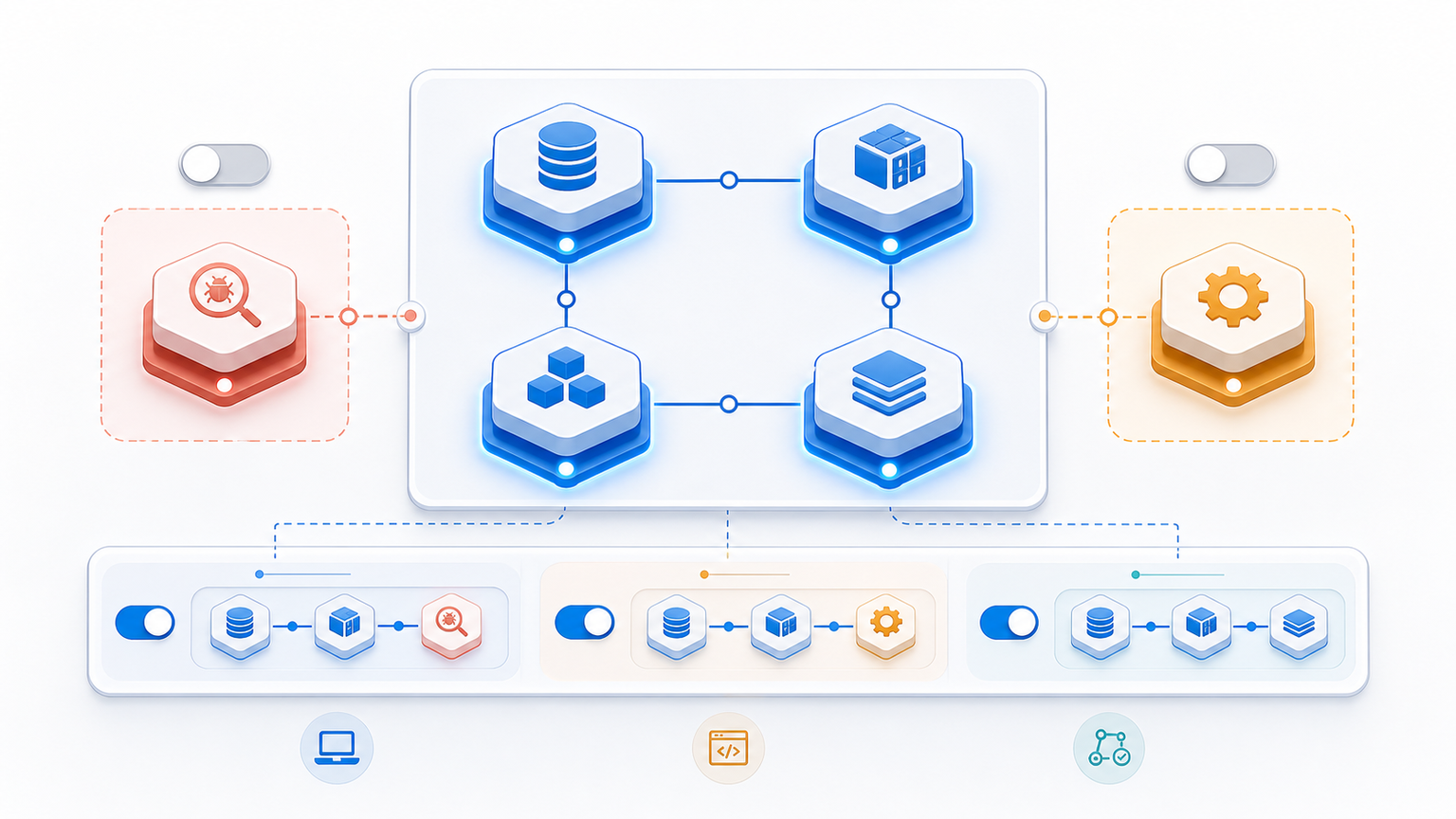
Google describes IAM as the service for managing access to Google Cloud resources through identities, roles, and policies. In practice, your team uses it to answer four questions: who is requesting access, what permission is needed, which resource is affected, and what context should limit the decision. The official IAM overview is the baseline, but production design needs a repeatable mental model.
| Layer | What it controls | DevOps decision |
|---|---|---|
| Principal | User, group, service account, workload identity, or domain | Prefer groups for humans and workload-specific service accounts for automation. |
| Role | A bundle of permissions | Start with predefined roles, then use custom roles only when a repeatable gap exists. |
| Policy | Bindings between principals and roles on a resource | Keep broad bindings at org/folder level rare and documented. |
| Condition | Context-aware expression attached to a binding | Use for time, resource, or request constraints that are easy to reason about. |
| Deny policy | A guardrail that blocks matching access even if allow policies grant it | Use for non-negotiable boundaries, not routine cleanup. |
Core IAM Building Blocks
Principals
A principal is the identity that receives access. Human access usually belongs to a Google group, not a single user. Automation access usually belongs to a service account. This split gives you cleaner ownership, easier offboarding, and fewer mystery permissions during incident review.
Roles and Permissions
Permissions are the atomic actions, such as reading a Compute Engine instance or updating a storage bucket. Roles are permission bundles. Google Cloud documents basic, predefined, and custom roles in its roles and permissions guide.
| Role type | Use it for | Watch out for |
|---|---|---|
| Basic roles | Legacy projects or very small experiments | Owner, Editor, and Viewer are usually too broad for production. |
| Predefined roles | Most production access patterns | They are maintained by Google but can still be broader than one task needs. |
| Custom roles | Stable, narrow permission sets that repeat across teams | They need ownership, review, and lifecycle management. |
Allow Policies
An allow policy binds one or more principals to one or more roles on a resource. The policy inheritance path matters: organization policies flow down to folders, projects, and child resources unless constrained. Read Google’s allow policies docs before designing project-level exceptions.
gcloud projects get-iam-policy PROJECT_ID \
  --format=json > iam-policy.json

gcloud projects add-iam-policy-binding PROJECT_ID \
  --member="group:[email protected]" \
  --role="roles/logging.viewer"Code language: PHP (php)
If your team is still setting up local tooling, start with the Google Cloud CLI setup guide before copying policy commands into a production terminal.
Service Accounts: Workload Identity, Not Shared Passwords
Service accounts represent workloads, not people. They are powerful because they let CI jobs, runtime services, and automation call Google Cloud APIs without a human login. They are dangerous when one generic service account becomes the shared key for every deployment path. Google’s service account overview is worth treating as required reading.
| Pattern | Good use | Risk signal |
|---|---|---|
| One service account per workload | A deployer account for one CI pipeline or one service | A single account used by many teams. |
| Group human access separately | Engineers can impersonate a workload account when approved | Users get direct long-lived keys. |
| Keyless first | Use workload identity federation or platform-native identity where possible | JSON keys stored in laptops, repos, or CI variables. |
| Audit by owner | Every service account has a team, system, and lifecycle note | No one knows whether the account is still needed. |
IAM Conditions and Deny Policies
IAM Conditions let you attach context to an allow binding. For example, access can depend on the resource name, request time, or other attributes. This is useful for scoped exceptions, temporary access, and resources that share a project but need different boundaries.
{
  "bindings": [
    {
      "role": "roles/storage.objectViewer",
      "members": ["group:[email protected]"],
      "condition": {
        "title": "analytics-prod-buckets-only",
        "expression": "resource.name.startsWith('projects/_/buckets/prod-analytics-')"
      }
    }
  ]
}Code language: JSON / JSON with Comments (json)
Deny policies are different. A deny policy blocks matching access even when an allow policy would otherwise grant it. Use deny for hard boundaries such as blocking destructive actions on shared production resources, not as a substitute for cleaning up messy allow policies.
A Practical Least-Privilege Workflow
Least privilege works when it is a workflow, not a slogan. The repeatable pattern is: observe what the workload actually needs, grant the narrowest predefined role that works, test the path, then remove temporary elevation.
| Step | Action | Evidence to keep |
|---|---|---|
| 1. Define the job | Write the operation the principal must perform | Ticket, runbook, or deployment stage. |
| 2. Pick the narrow role | Choose a predefined role before custom role design | Role name and docs link. |
| 3. Scope the binding | Apply it to the smallest useful resource level | Project, folder, bucket, dataset, or service. |
| 4. Test and audit | Run the workflow and inspect access logs | Command output, Cloud Audit Logs, failed permission checks. |
| 5. Review later | Use recommender and access reviews to reduce drift | Owner, review date, decision. |
For teams that also manage AWS, compare this with the AWS IAM roles guide and AWS Organizations strategy. The names differ, but the operating problem is similar: keep identity boundaries legible as accounts, projects, teams, and environments multiply.
Audit Logs, Recommender, and Drift Control
GCP IAM design is incomplete without review loops. Cloud Audit Logs help answer who changed policy and which principal performed sensitive actions. Google’s IAM audit logging page explains which operations are logged. Policy Intelligence can also surface role recommendations when principals appear to have broader access than they use.
A healthy review loop looks boring: weekly checks for new broad bindings, monthly review of service accounts with no recent use, and quarterly review of custom roles. The point is not to remove every permission immediately. The point is to make access drift visible before it becomes an incident.
Common Mistakes
| Mistake | Why it hurts | Better approach |
|---|---|---|
| Using Owner or Editor by default | One shortcut grants many unrelated permissions | Use task-specific predefined roles and groups. |
| Binding users directly | Offboarding and review become manual detective work | Bind Google groups for human teams. |
| Sharing one deployer service account | A compromise affects many systems | Create workload-specific accounts. |
| Keeping service account keys forever | Static keys spread into CI, laptops, and old docs | Prefer keyless identity and rotate/delete old keys. |
| Adding custom roles too early | Custom roles become another unreviewed inventory | Use custom roles only for stable repeat gaps. |
Implementation Checklist
Use this checklist before granting or expanding access:
- Is the principal a group or workload-specific service account?
- Is the role predefined and narrow enough for the job?
- Is the binding applied at the smallest useful resource scope?
- Does the access need a condition, expiry, or documented owner?
- Have you checked audit logs after the workflow runs?
- Is there a review date for broad, custom, or temporary access?
If the answer is unclear, pause before granting broader permissions. Most IAM incidents start as “temporary” access that nobody revisits.
FAQ
What is GCP IAM used for?
GCP IAM controls which principals can perform which actions on Google Cloud resources. DevOps teams use it to manage human access, service account permissions, deployment automation, and least-privilege boundaries across organizations, folders, projects, and resources.
Should I use predefined roles or custom roles in GCP IAM?
Use predefined roles first because Google maintains them and they cover most common production tasks. Create custom roles only when a stable, repeated access pattern needs fewer permissions than any suitable predefined role.
What is the safest way to use service accounts?
Create service accounts for specific workloads, keep ownership clear, and avoid long-lived keys where possible. Prefer keyless patterns such as workload identity federation or platform-native identity, then audit which services can impersonate each account.
When should I use IAM Conditions?
Use IAM Conditions when an allow binding needs context, such as time, resource name, or request attributes. They are useful for scoped exceptions and temporary access, but the expression must stay simple enough for future reviewers to understand.
How do I audit GCP IAM permissions?
Review IAM policy changes in Cloud Audit Logs, inspect broad bindings, check service accounts with unclear ownership, and use role recommendations where available. Combine automated signals with a regular access review so stale permissions do not accumulate.


Leave a Reply