

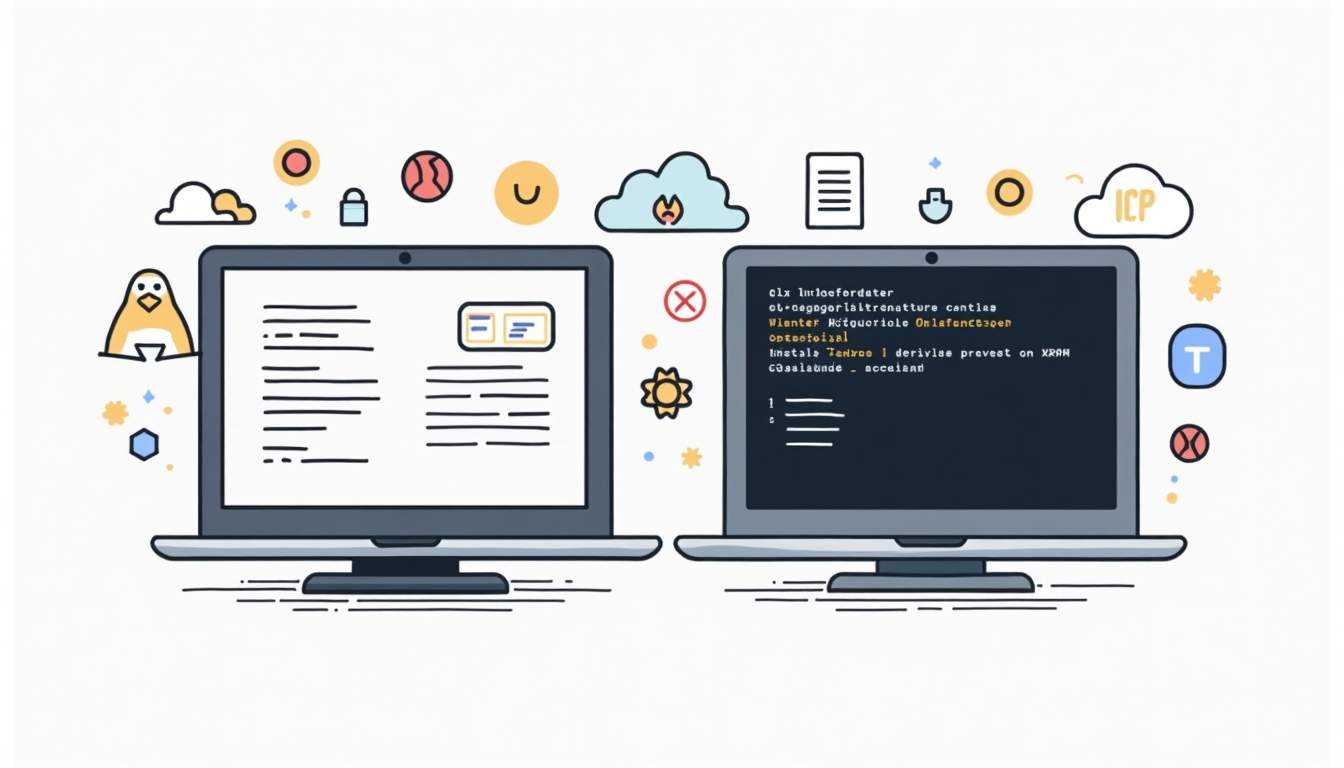
The Google Cloud CLI is the command-line toolkit behind gcloud. Install it before you automate Google Cloud projects, authenticate service accounts, inspect IAM, or run deployment scripts from a terminal.
For the broader route map, see our GCP services for DevOps engineers guide.
Quick takeaway: use Google’s current installer for your operating system, verify with
gcloud version, then rungcloud initbefore connecting real projects. Do not copy old “Cloud SDK” package snippets without checking the official docs first.
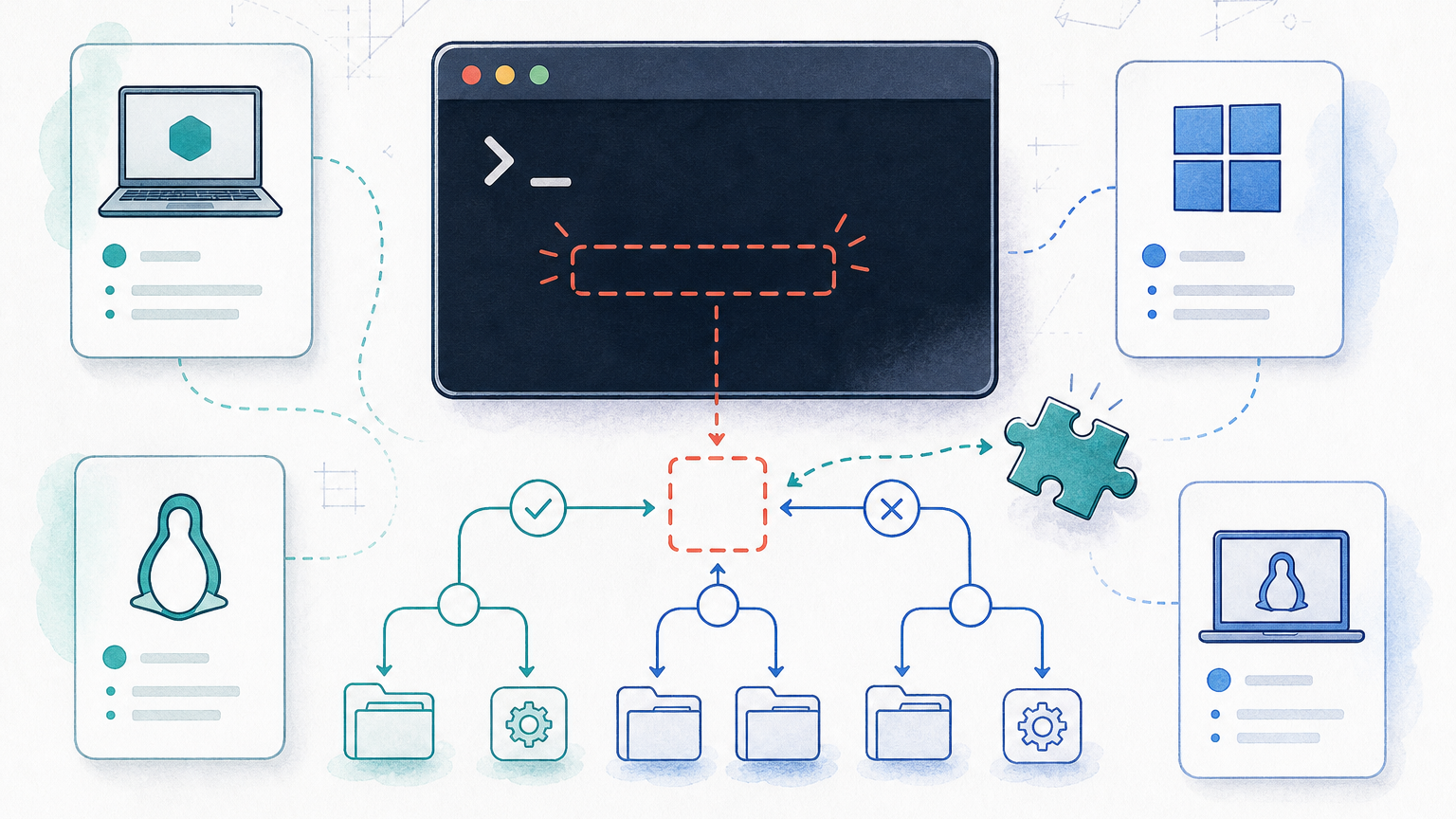
This guide keeps the flow practical: install on Linux or Windows, confirm the PATH, initialize the CLI, and fix the issues that usually block a first setup.
What Google Cloud CLI Includes
The package is now branded as the Google Cloud CLI. Older articles and scripts may still say “Google Cloud SDK”, but in daily work you mostly interact with these commands:
| Tool | What It Does | Use It When |
|---|---|---|
gcloud | Manages Google Cloud projects, services, IAM, compute, GKE, and configuration. | You need the default Google Cloud command line. |
bq | Runs BigQuery jobs and manages datasets. | You work with BigQuery from scripts or CI jobs. |
gsutil | Manages Cloud Storage buckets and objects. | You need legacy or script-compatible Cloud Storage commands. |
| Components | Adds tools such as kubectl or beta command groups. | You need extra commands after the base install. |
If you also work across AWS, keep the setup pattern similar to the AWS CLI workflow guide: install from the official source, verify the binary, configure auth, then test a read-only command before doing anything destructive.
Before You Install
Do these checks first, especially on shared laptops, CI runners, or machines that already have an older SDK installed.
- Confirm whether you need a user login, a service account, or both.
gcloud initis user-friendly for local machines; service accounts are usually better for CI. - Check whether your company blocks browser-based OAuth from terminals. If it does, plan a device-flow or service-account path.
- Decide whether you want a per-user install or a package-manager install. Package managers are easier to update across fleets; the archive installer is often simpler for one machine.
- Use the official Google Cloud docs as the source of truth because package names and setup commands change over time.
Install Google Cloud CLI on Linux
Google documents several Linux paths. The safest default for most engineers is to follow the official package-manager instructions for your distribution, then verify the installed binary.
Option 1: Package Manager Install
Use this path when you want normal system updates and a repeatable setup on workstations or build images. Google’s Linux package instructions cover repository setup, package installation, and component management.
# Follow the current Google Cloud package instructions for your distro first.
# After installation, verify the CLI is available.
gcloud version

# Start the interactive setup.
gcloud initCode language: PHP (php)
Option 2: Archive Install
Use the archive installer when you do not want to modify system package repositories, or when you need a user-local install. Download the current Linux archive from Google’s install page, extract it, then run the bundled installer.
tar -xf google-cloud-cli-*.tar.gz
./google-cloud-sdk/install.sh

# Restart the shell or source the updated profile, then verify.
gcloud versionCode language: PHP (php)
If gcloud is not found after install, open a new terminal first. If it still fails, inspect your shell profile and PATH entry before reinstalling.
Install Google Cloud CLI on Windows
On Windows, the simplest path is the official Google Cloud CLI installer. It can add the CLI to PATH and open an initialization flow after installation.
- Download the current Windows installer from Google’s install page.
- Run the installer with the default PATH option unless your team has a stricter workstation policy.
- Open a new PowerShell window after installation.
- Run
gcloud version, thengcloud init.
gcloud version
gcloud init
If PowerShell cannot find the command, close and reopen the terminal. If that does not work, check the user PATH and confirm the Google Cloud CLI bin directory was added by the installer.
Initialize gcloud and Set the Active Project
gcloud init connects your local CLI to a Google account, creates or selects a configuration, and sets a default project. For a first local setup, that is usually enough.
gcloud init

# Confirm the active account and project.
gcloud auth list
gcloud config list

# Set a project explicitly if needed.
gcloud config set project PROJECT_IDCode language: PHP (php)
For automation, do not rely on whichever account happens to be active in your shell. Use explicit project IDs, named configurations, and service-account authentication where appropriate.
Common Install Problems and Fixes
| Problem | Likely Cause | Fix |
|---|---|---|
gcloud: command not found | PATH was not updated or the terminal still has an old environment. | Open a new shell, inspect PATH, and rerun the installer profile step. |
| Browser login does not open | Headless terminal, remote SSH session, or blocked browser integration. | Use the alternative auth flow from Google docs or authenticate with a service account for automation. |
| Wrong project receives commands | The active gcloud configuration points to another project. | Run gcloud config list and set the project explicitly before running commands. |
| Component install fails | System package install manages components differently, or permissions are restricted. | Use the package-manager update path or install as a user-local archive if policy allows. |
| Old docs mention Cloud SDK | The product name changed, but older commands still appear online. | Prefer current Google Cloud CLI docs and verify package names before copying commands. |
Safe Verification Commands
After installation, test read-only commands before creating resources. This is the same safety habit you would use for CI/CD pipeline changes or cross-cloud automation.
gcloud version
gcloud auth list
gcloud config list
gcloud projects list --limit=5Code language: PHP (php)
If these commands work and the active project is correct, you can move on to service-specific commands. If they fail, fix authentication or project selection first. Do not troubleshoot by granting broader permissions until you know which identity the CLI is using.
When to Use Service Accounts Instead
A personal login is fine for local learning and one-off admin work. CI/CD, scheduled jobs, and production automation should normally use service accounts with scoped permissions. That keeps activity auditable and avoids tying automation to one person’s browser session.
For access-heavy work, keep Google Cloud IAM changes as deliberate as you would for AWS Organizations or IAM changes. If you are documenting multi-account controls, the same principle applies: auth setup is not just a convenience step, it is a blast-radius decision.
FAQ
These are the setup questions that usually come up after the base install works.
Is Google Cloud CLI the same as gcloud?
The Google Cloud CLI is the package. gcloud is the main command inside that package. You may also get tools such as bq and gsutil depending on the install path and components.
Should I install Google Cloud CLI with a package manager or the archive installer?
Use a package manager when you want normal system updates and fleet-friendly management. Use the archive installer when you need a user-local install or cannot change system repositories.
Why does my terminal say gcloud is not found after installation?
The PATH update may not be loaded in the current shell. Open a new terminal, check the PATH entry, and rerun the installer profile step if needed.
Do I need gcloud init on a CI runner?
Usually no. CI should normally use explicit service-account authentication and project configuration instead of an interactive browser setup.
Can I have multiple Google Cloud projects configured locally?
Yes. Use named gcloud configurations or set the project explicitly with gcloud config set project PROJECT_ID before running commands.
Sources
- Google Cloud CLI install documentation
- Google Cloud CLI Linux and Windows install quickstart
- Google Cloud CLI initialization documentation

Leave a Reply